Selling Configurable Products with Variants in Odoo Sales
How to set up product variants in Odoo Sales using attributes like colour and size, configure variant pricing and exclusions, and use the product configurator on quotations.

What Product Variants Actually Solve
Plenty of the Hong Kong businesses we help at APAA sell one product that comes in many forms — a t-shirt in several sizes and colours, a lamp in a handful of finishes, a desk with different leg options. The tempting but painful approach is to create a separate product for every combination. Product variants are the better answer: you define a single product template with attributes, and Odoo generates every variant for you automatically.
This matters most in industries like fashion, furniture, and electronics, where customers simply expect choice. Variants keep your product catalogue clean, simplify inventory tracking, and give customers a smooth buying experience — all without exposing the complexity underneath.
Turning On Variants in Odoo Sales
Before you can create any variants, switch the feature on in your Sales settings:
- Open the Sales application.
- Go to Configuration > Settings.
- Find the Variants option near the top.
- Enable it and save.
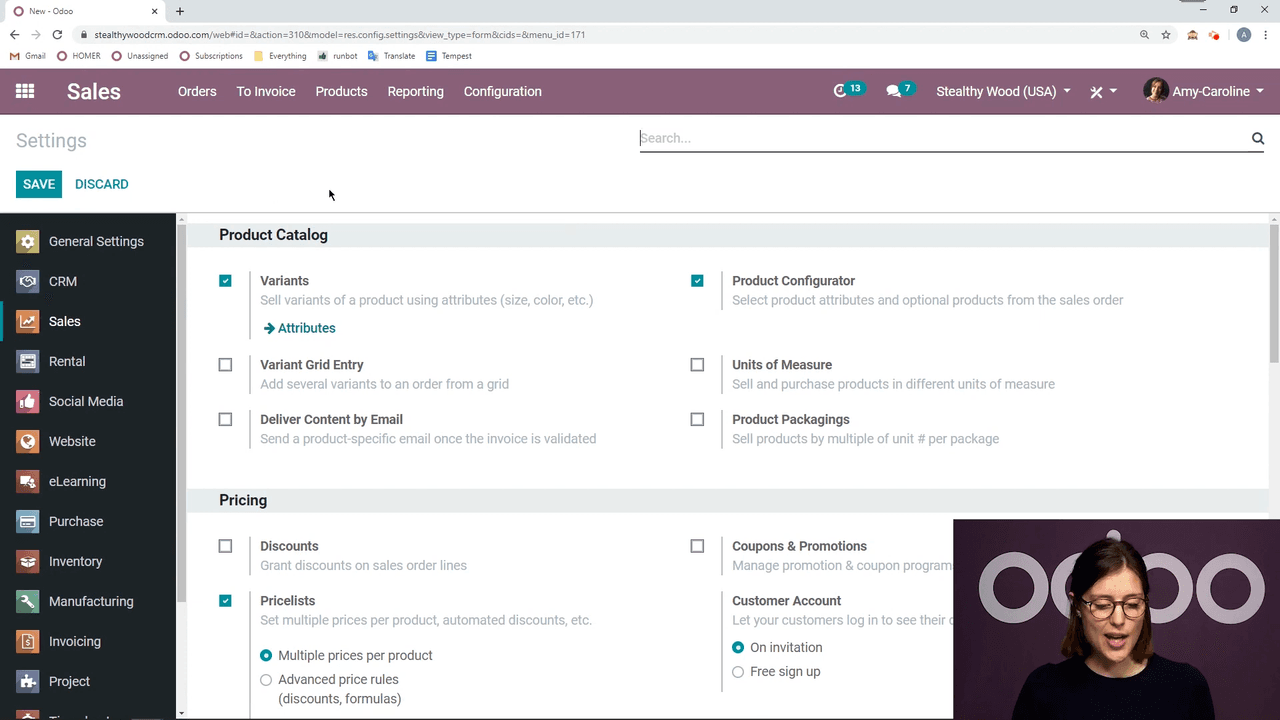
Once it is on, an Attributes menu appears under Configuration, where you define the characteristics your products can have.
Setting Up Attributes and Their Values
Attributes are the categories of variation (Colour, Size, Legs); values are the specific options inside each one (Red, Blue, Large).
Creating an attribute
Go to Configuration > Attributes and click Create. Each attribute needs three settings:
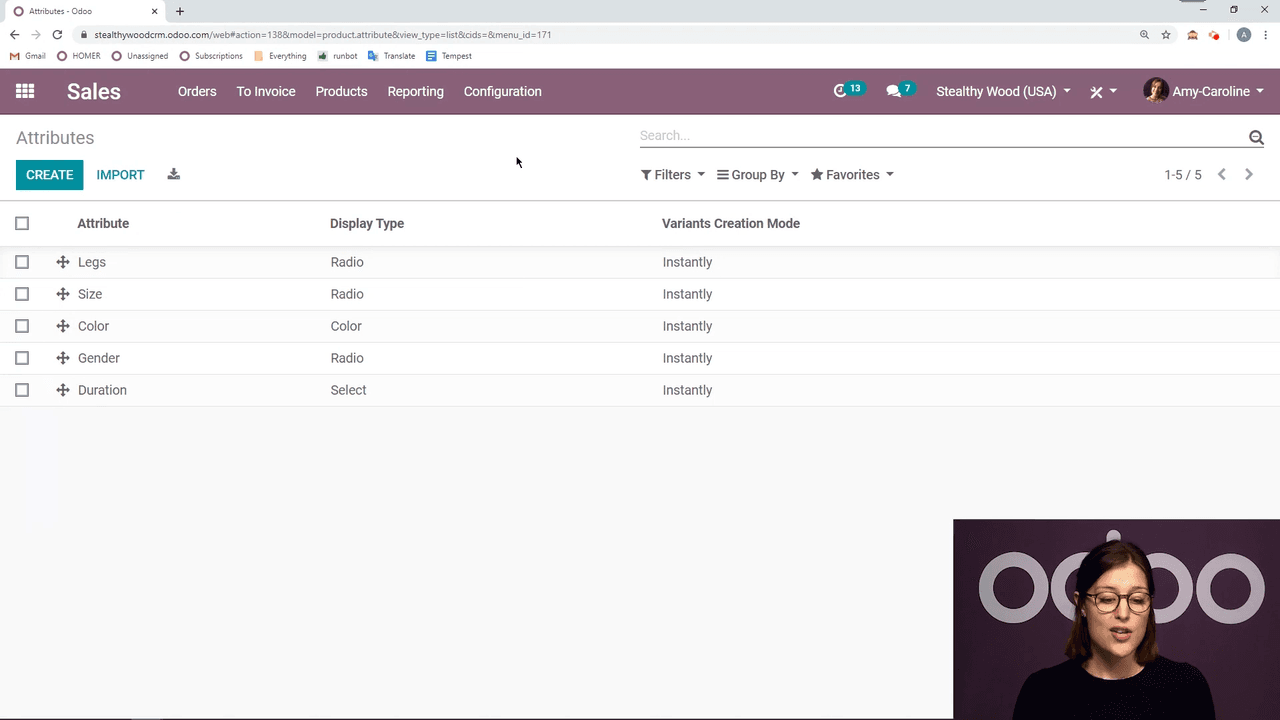
| Setting | Options | What it controls |
|---|---|---|
| Attribute Name | Free text | The name customers see (e.g. "Colour") |
| Display Type | Radio, Select, Colour | How the values appear on the storefront |
| Variant Creation Mode | Instantly, Dynamically, Never | When Odoo generates the variant records |
Important: once variants have been created for an attribute, you can no longer change its variant creation mode. Choose carefully during initial setup.
Adding values
Inside each attribute, add the specific values your products can use:
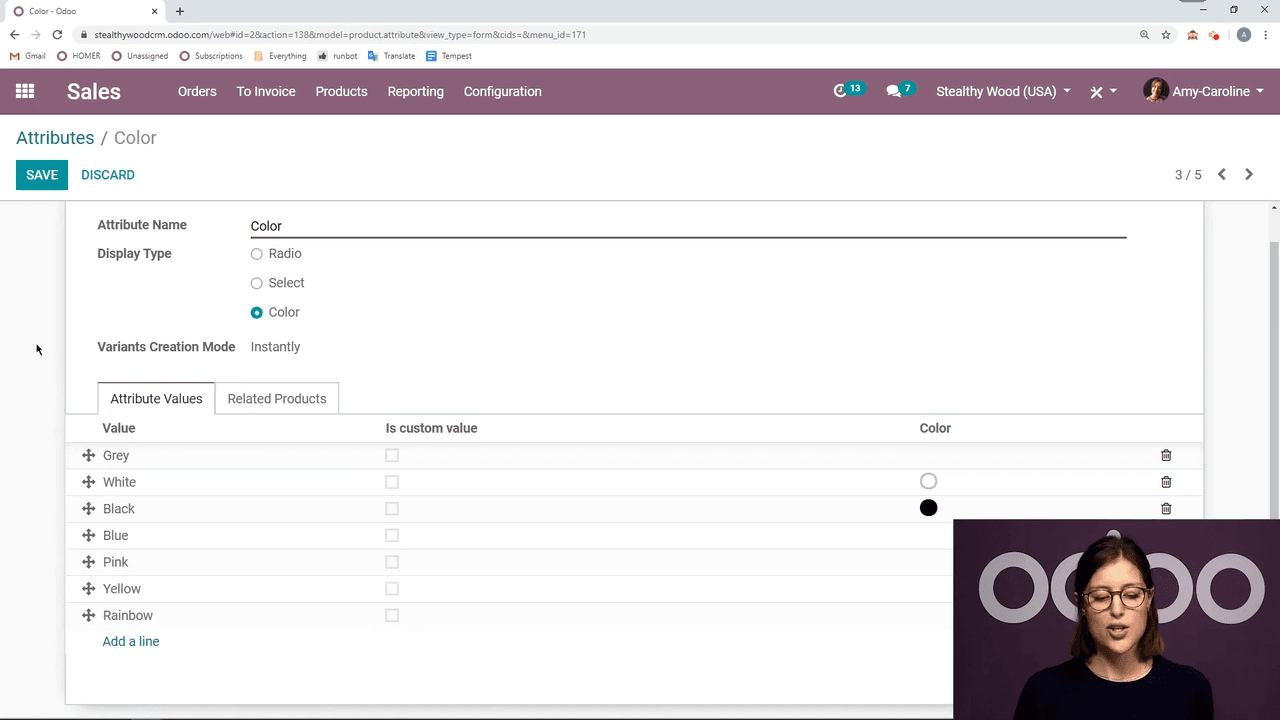
- For the Colour display type, you can assign an HTML colour code to each value so it shows visually on the website.
- Mark a value as Custom if you want customers to enter their own specification.
- You only create values once — they can be reused across as many products as you like.
Example: a Colour attribute
A typical Colour attribute might hold values like Grey, White, Black, Blue, Pink, Yellow, and Rainbow. Each can carry an HTML colour code, so customers see a colour swatch rather than a plain text label.
Applying Attributes to a Product
With your attributes ready, apply them to individual products:
- Open a product from Sales > Products.
- Go to the Variants tab.
- Click Edit and add an attribute line.
- Select the attribute (e.g. Colour).
- Choose only the values that apply to this product.
- Save the product.
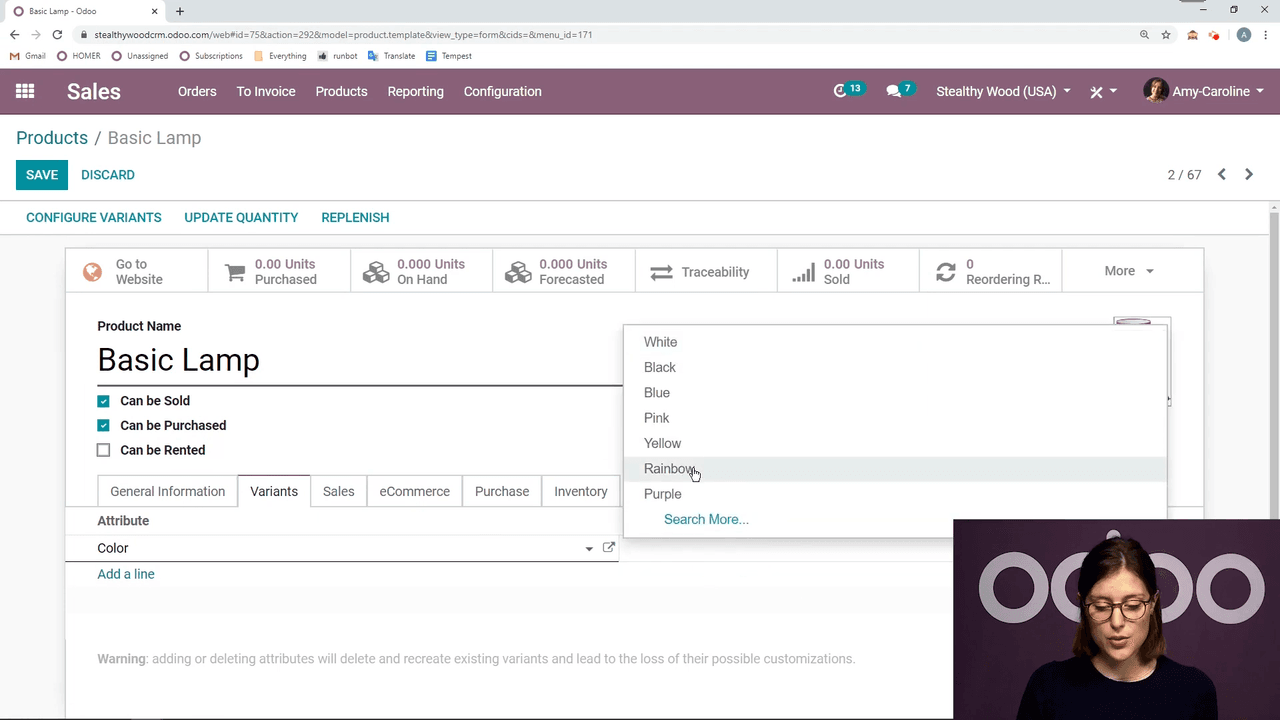
Odoo generates the variants from your selection. If the variant creation mode is set to Instantly, they appear right away. You can always add more values later — introducing a new colour option for an existing product, for instance.
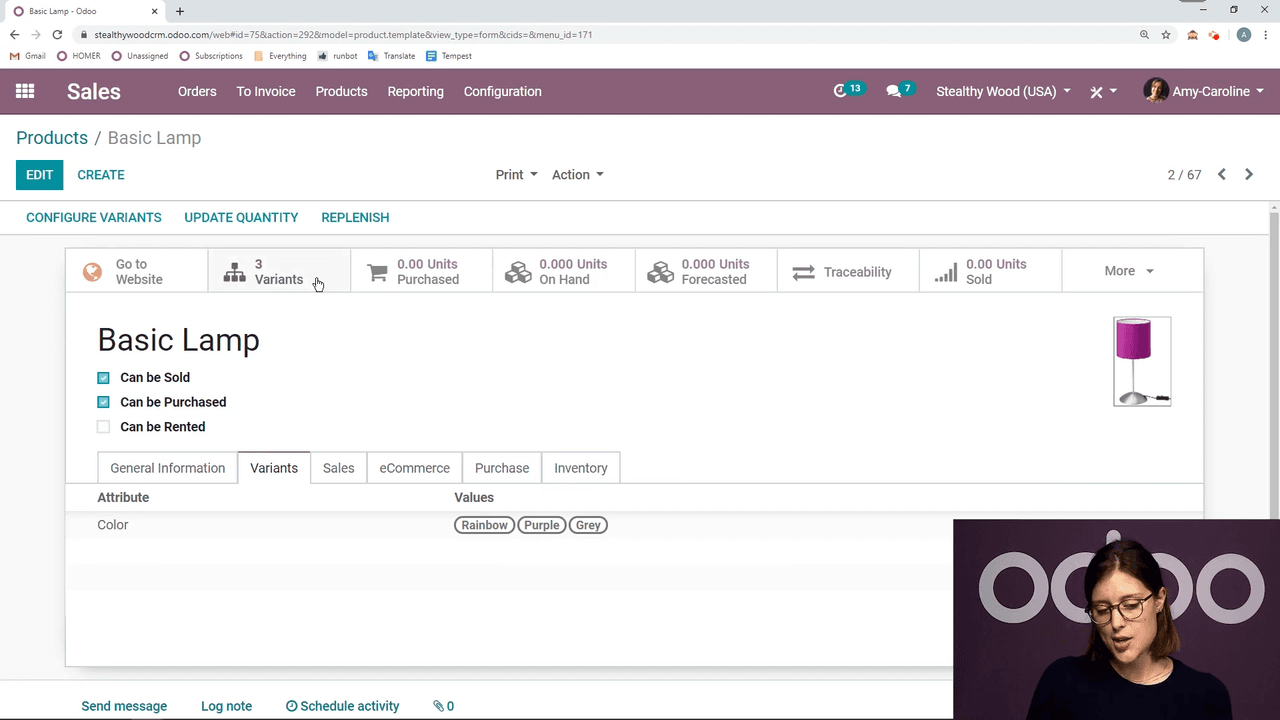
Configuring Variant Pricing and Exclusions
Click Configure Variants on the product to fine-tune each one:
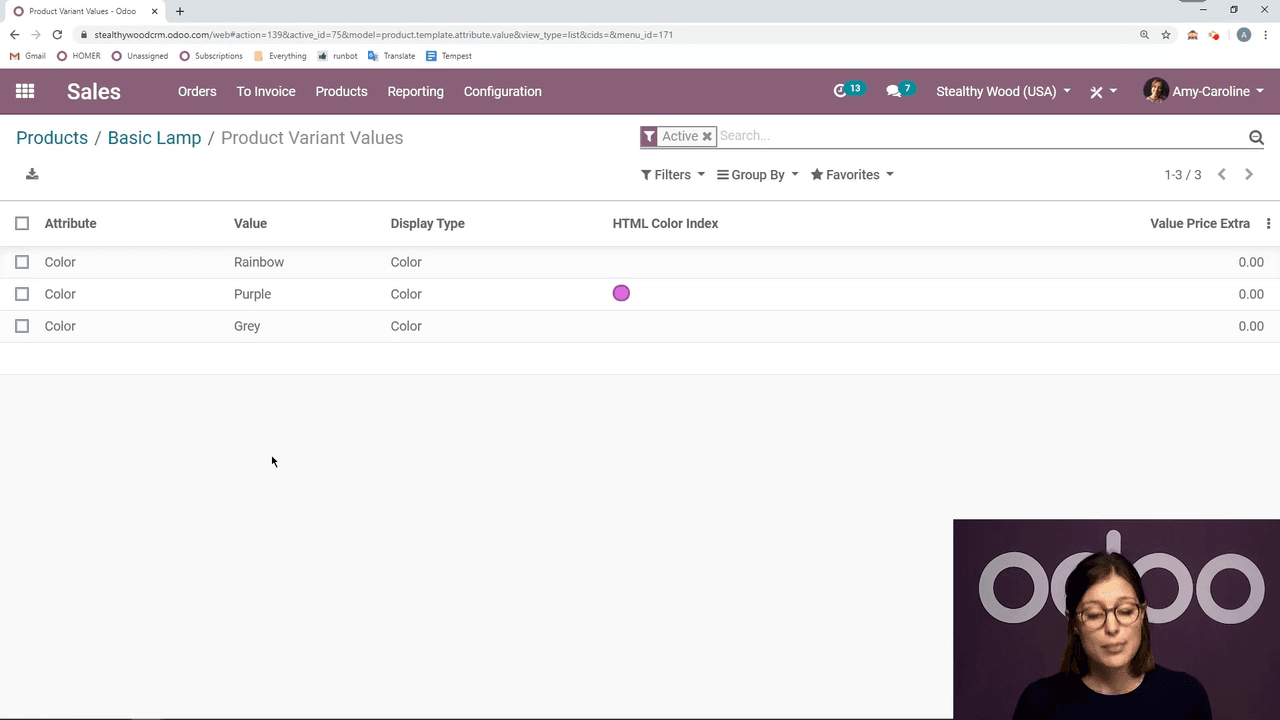
Extra pricing
Add a price premium to specific variants. If a rainbow-coloured lamp is in high demand, for example, you can set an extra price of $5. That amount is added on top of the base product price.
Value exclusions
Define which attribute value combinations are incompatible. This is handy when certain options cannot physically or logically coexist. For example:
- A customisable desk with aluminium legs might not be offered in black.
- Selecting "black" as the colour then hides "aluminium" from the legs options.
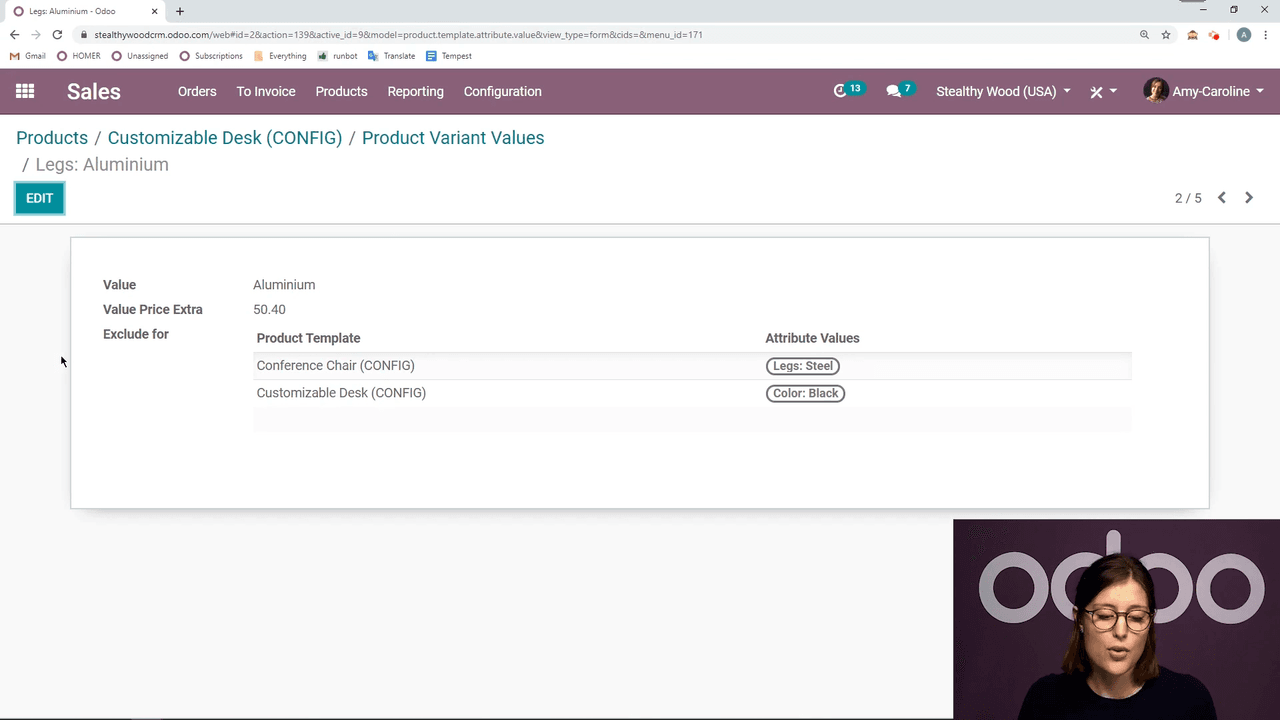
Exclusions carry through the product configurator, so customers cannot select an invalid combination in the first place.
Using the Product Configurator on Quotations
When you build a quotation, the product configurator makes variant selection effortless:
- Go to Orders > Quotations and create a new quotation.
- Select your customer.
- Add a product that has variants.
The Product Configurator pops up automatically, listing every available attribute and its values. Prices update in real time — if a variant carries an extra price, it shows immediately, so you and your customer see the total before confirming.
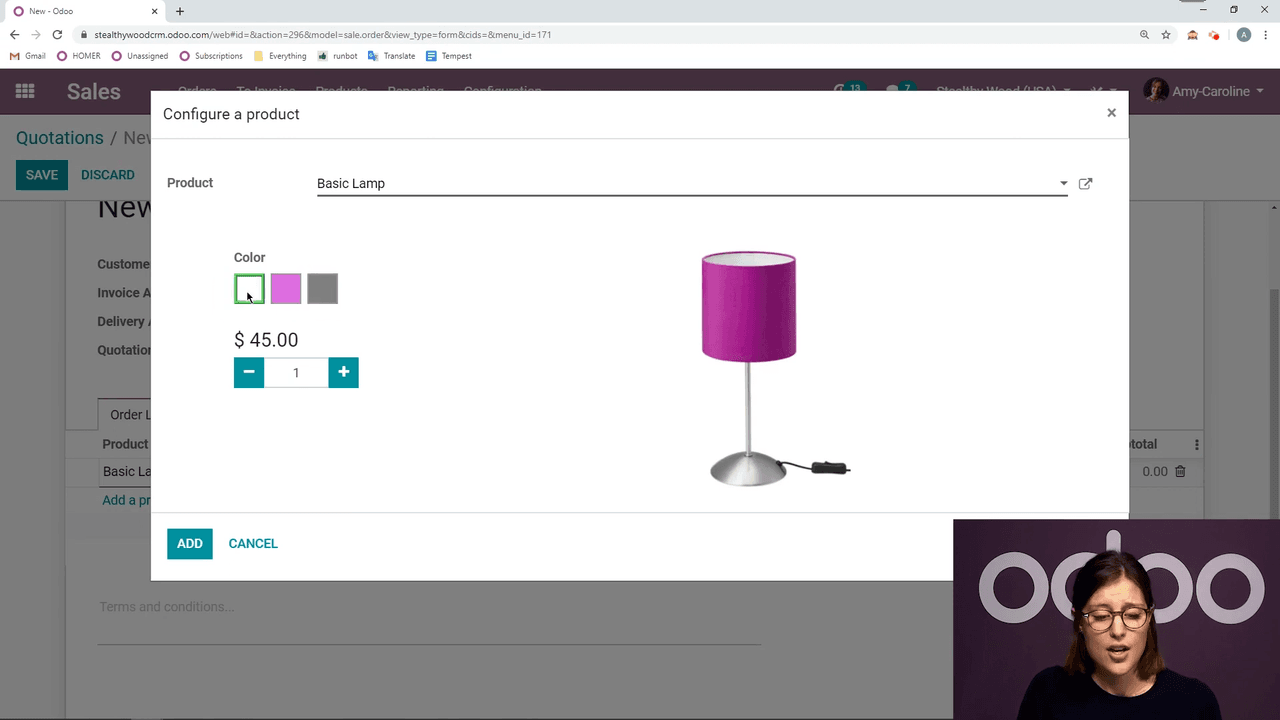
Prerequisite: make sure the Product Configurator option is enabled in your Sales settings for this popup to appear.
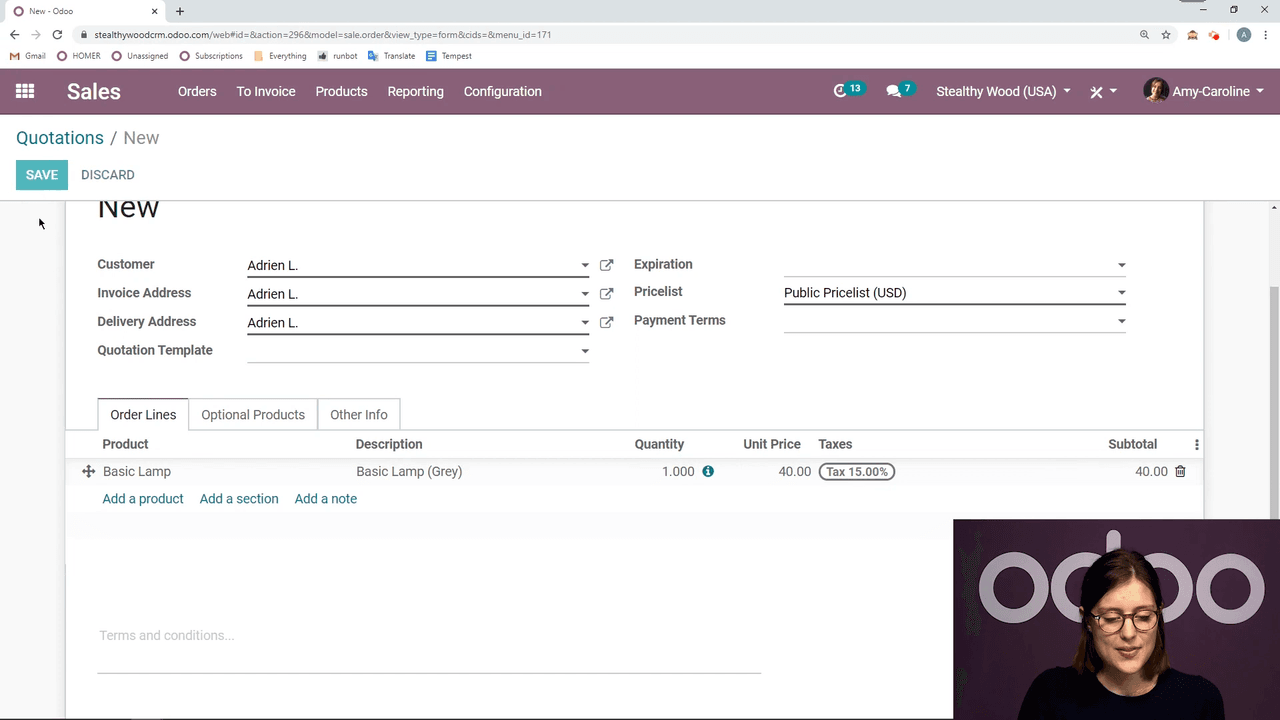
Once you have picked the variant, click Add to drop it onto the quotation. From there it is the standard sales flow — confirm the order, generate invoices, and manage delivery.
Where to Take This Next
With variants configured, a few related features round out the workflow:
- Pricelist rules — set variant-specific pricing for different customer segments.
- eCommerce integration — show variants with colour swatches and dropdowns on your online store.
- Inventory tracking — monitor stock per variant for accurate availability.
- Manufacturing — link variants to specific bills of materials for production planning.
If you sell configurable products and want variants, pricing, and the configurator set up to match how your business actually operates, reach out to APAA and we will help you get it right from the start.