Scheduling Activities in Odoo: One System to Replace Every Sticky Note
A hands-on guide to creating, scheduling, and managing activities in Odoo so your team stays organised across CRM, Projects, Sales, and any record with a chatter.

Why Activities Beat Sticky Notes and Mental To-Do Lists
Every Hong Kong SME we work with at APAA wrestles with the same two constraints: too much admin, not enough hours. Sticky notes get lost, the to-do list living in someone's head gets forgotten, and follow-ups quietly slip away.
Odoo's activities feature closes that gap by attaching actionable tasks directly to records — a lead, a sales order, a project task, or any document with a chatter. Each activity has a type, a deadline, an assignee, and an optional note, so nothing falls off the radar.
Scheduling an Activity, Step by Step
Step 1: Open a record
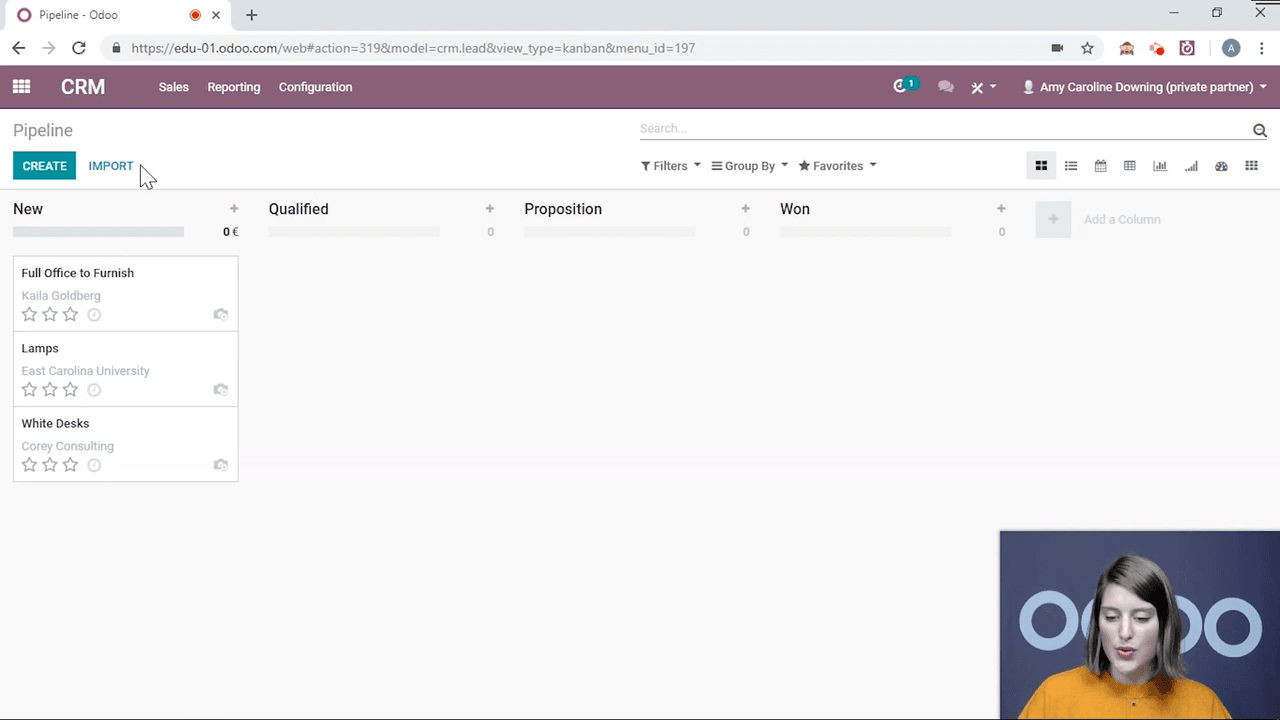
Go into any module — CRM, Sales, Project, or another — and open the record you want to attach an activity to. For example, open a lead in the CRM pipeline.
Step 2: Find the chatter
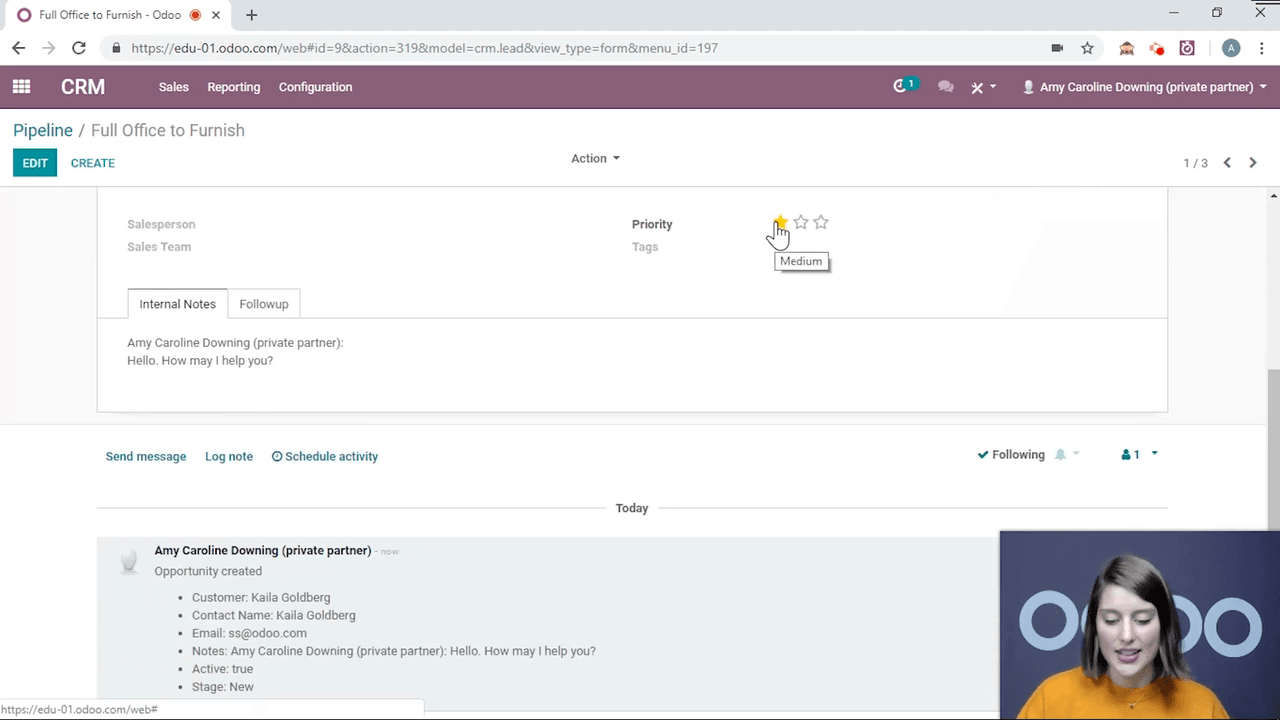
Scroll to the bottom of the record (or look to the right on a wider screen). This is the chatter — the communication and history log for that document.
Step 3: Click "Schedule Activity"
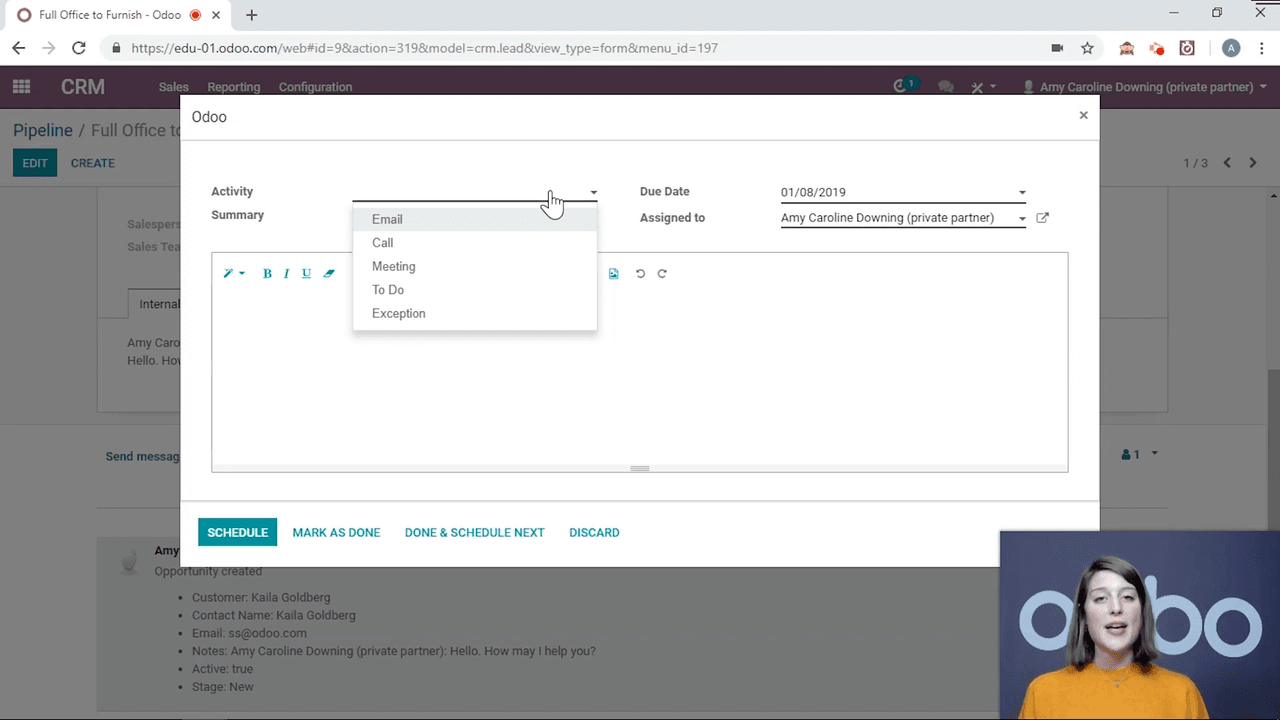
Click the Schedule Activity button in the chatter. A dialog opens with these fields:
- Activity Type — Email, Call, Meeting, To Do, Exception, or any custom type you have created.
- Summary — a short description (e.g. "Follow-up call").
- Due Date — when the activity needs to be done.
- Assigned to — the user responsible.
- Note — optional instructions or context for the assignee.
Step 4: Schedule it
Fill in the details and click Schedule. The activity now sits in the chatter with a countdown of how many days remain until it is due.
Delegating Activities to Other People
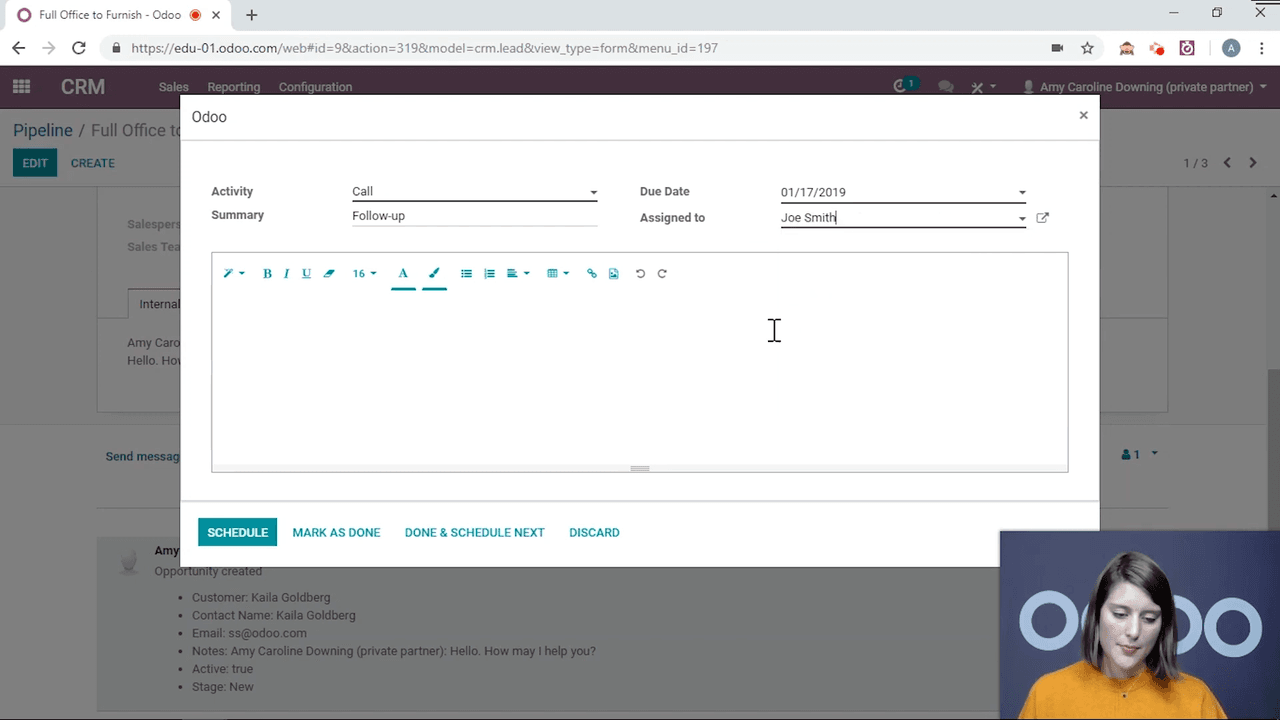
You are not limited to scheduling tasks for yourself. Use the Assigned to field to hand a task to a colleague, and it lands in their personal activity feed.
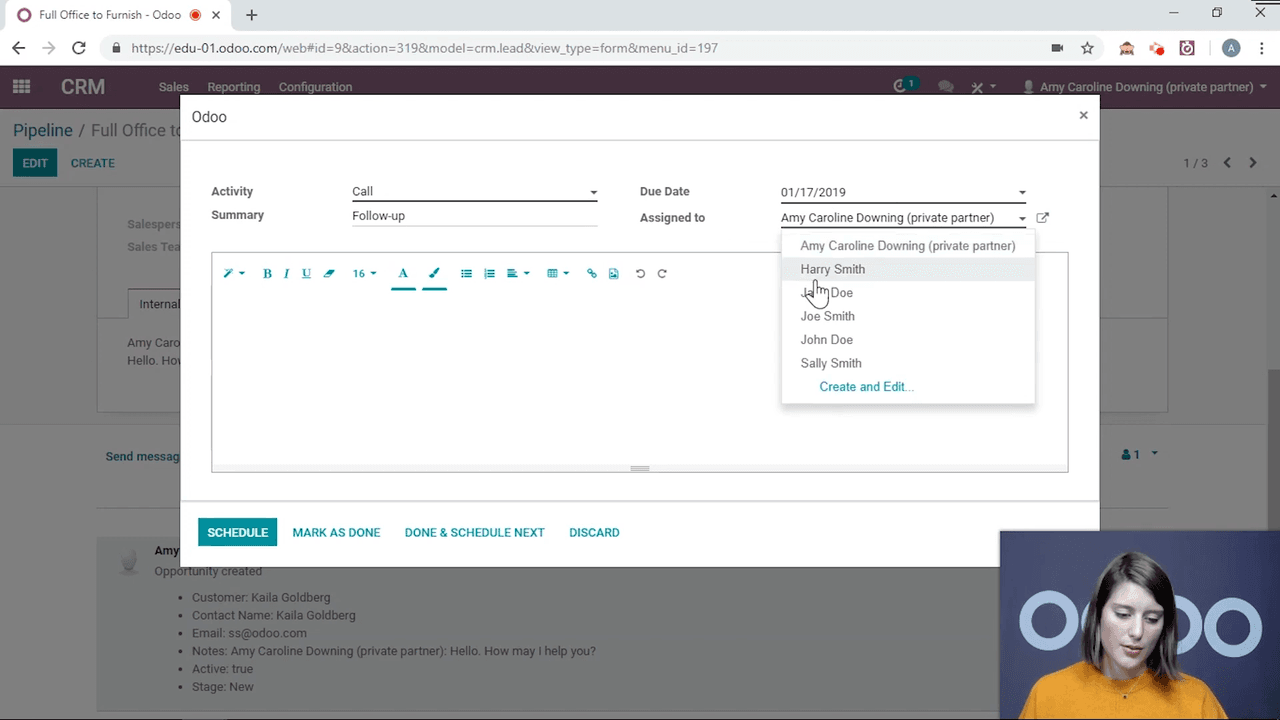
For a manager, this is the difference between distributing follow-ups across a sales team and trying to carry the whole list personally — you delegate without losing visibility over who owns what.
Managing an Activity Once It Exists
After an activity is scheduled, you have three moves:
| Action | What it does |
|---|---|
| Edit | Change the deadline, assignee, or details |
| Cancel | Remove the activity from the record entirely |
| Mark Done | Complete it, with the option to schedule a follow-up straight away |
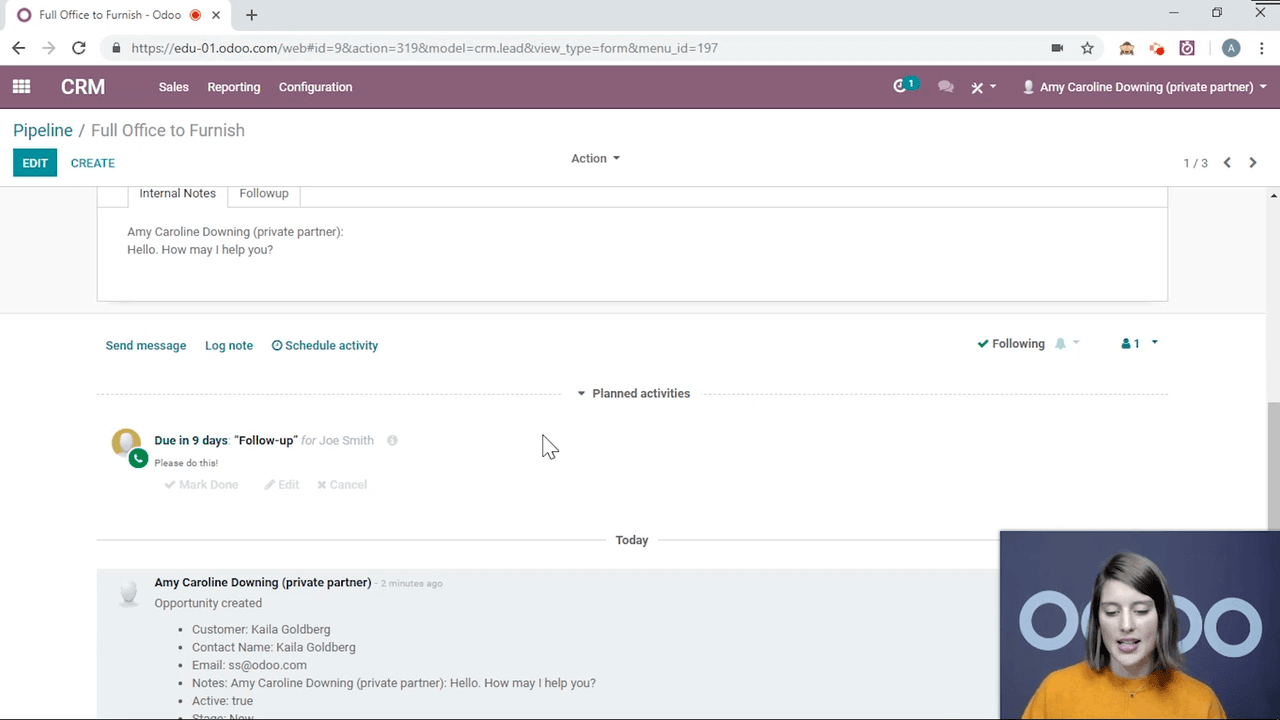
Click Mark Done and Odoo gives you three choices:
- Discard — back out if you clicked by mistake.
- Done — mark it complete and move on.
- Done & Schedule Next — mark it complete and immediately create the next activity.
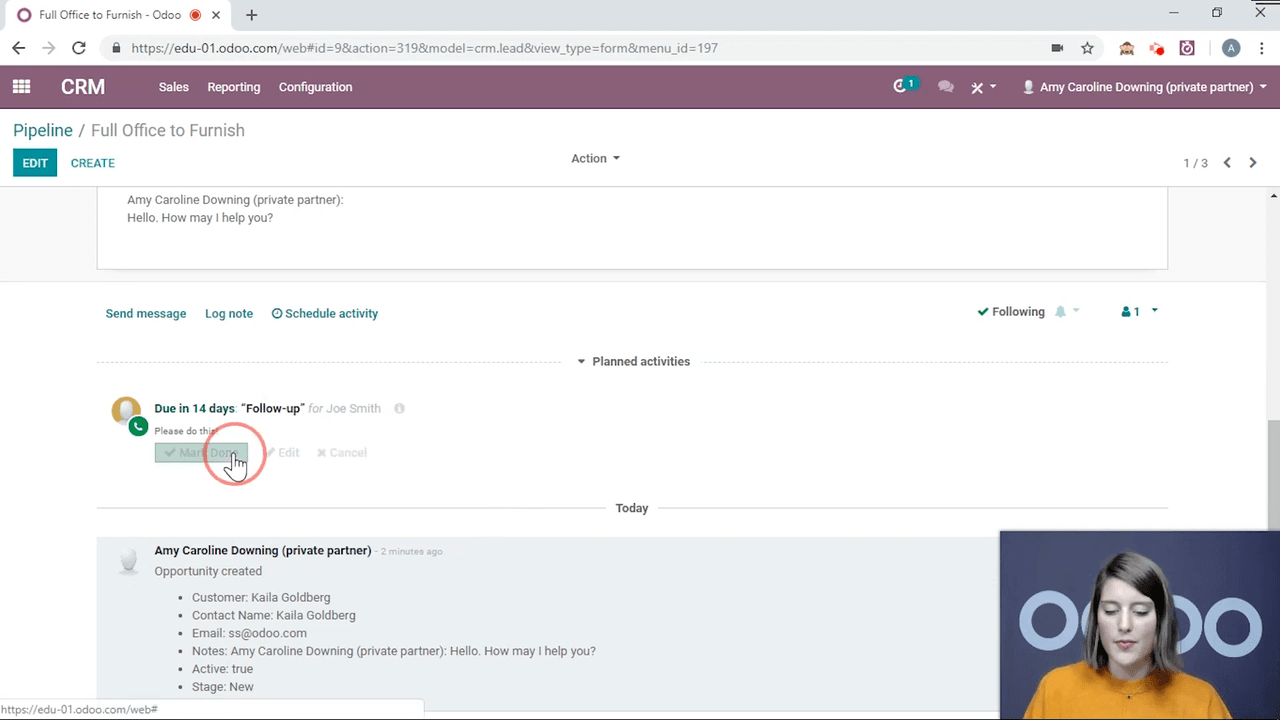
That third option is the quiet workhorse. Chaining one activity into the next keeps a multi-step workflow moving without anyone having to remember to restart it.
Seeing Everything on Your Plate
Click the clock icon in the top navigation bar to pull up every activity assigned to you. The view splits them into:
- Activities due today.
- Activities due in the future.
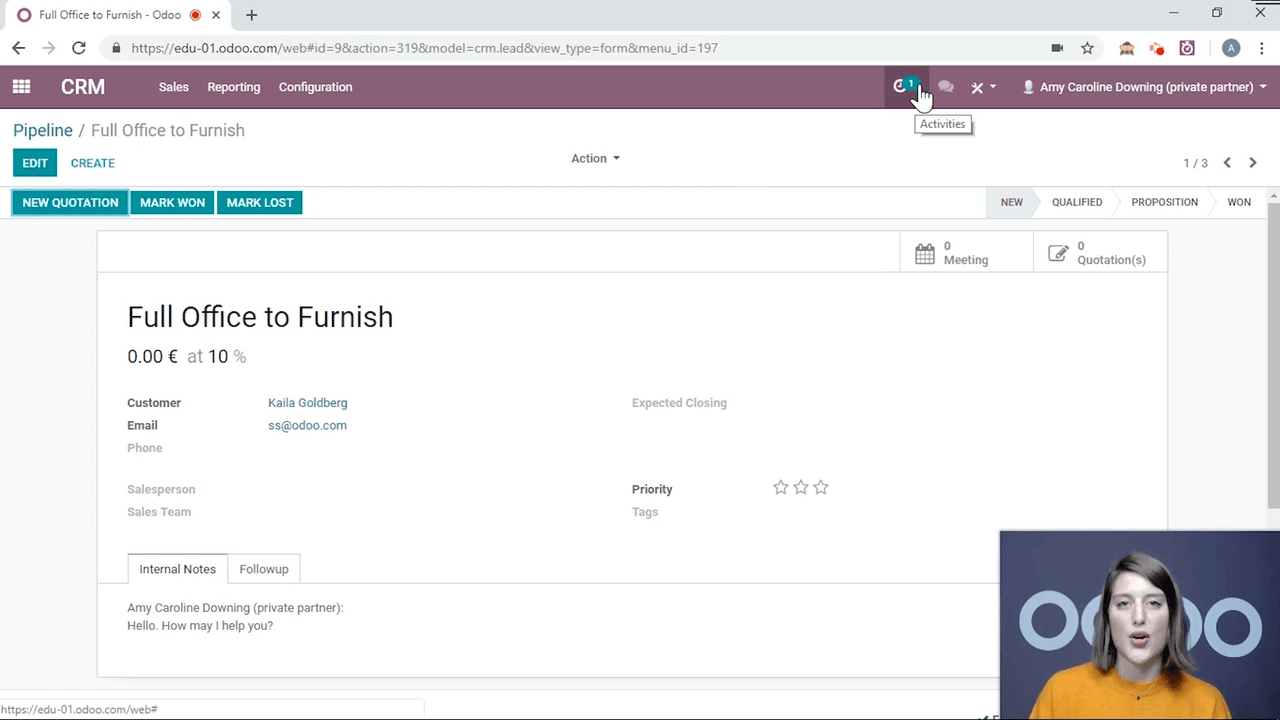
The clock only shows your own activities, not the ones you have delegated to others. When a single record carries several activities, Odoo groups them together under one document entry.
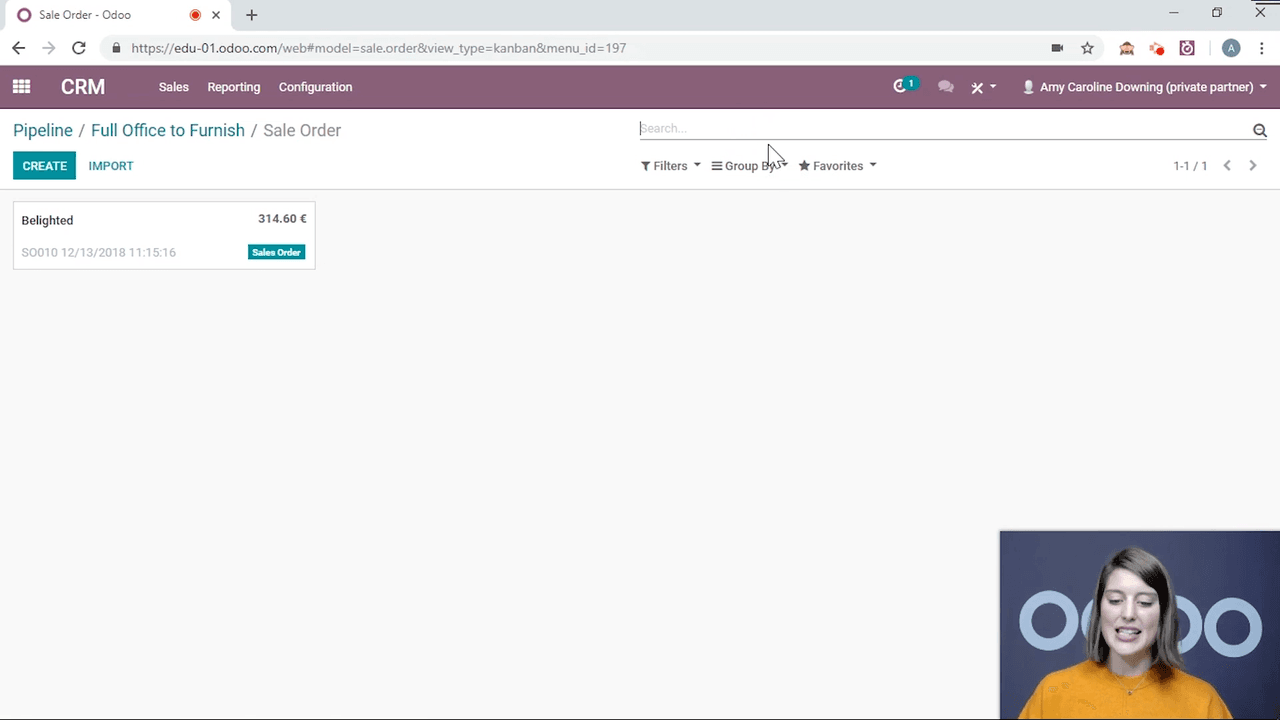
Creating Your Own Activity Types
The defaults — Email, Call, Meeting, To Do, Exception — cover the common cases, but you can add your own.
How to create a custom type
- Go to Configuration > Activity Types in any module (CRM, for instance).
- Click Create.
- Set up the following:
- Name — the display name for your activity type.
- Category — an optional grouping.
- Default Summary — pre-filled summary text.
- Days to Complete — calculates the deadline automatically.
- Default Next Activity — auto-schedules a follow-up when this activity is completed.
- Suggest Next Activities — offers suggestions instead of auto-scheduling.
- Mail Template — attaches an email template to send automatically.
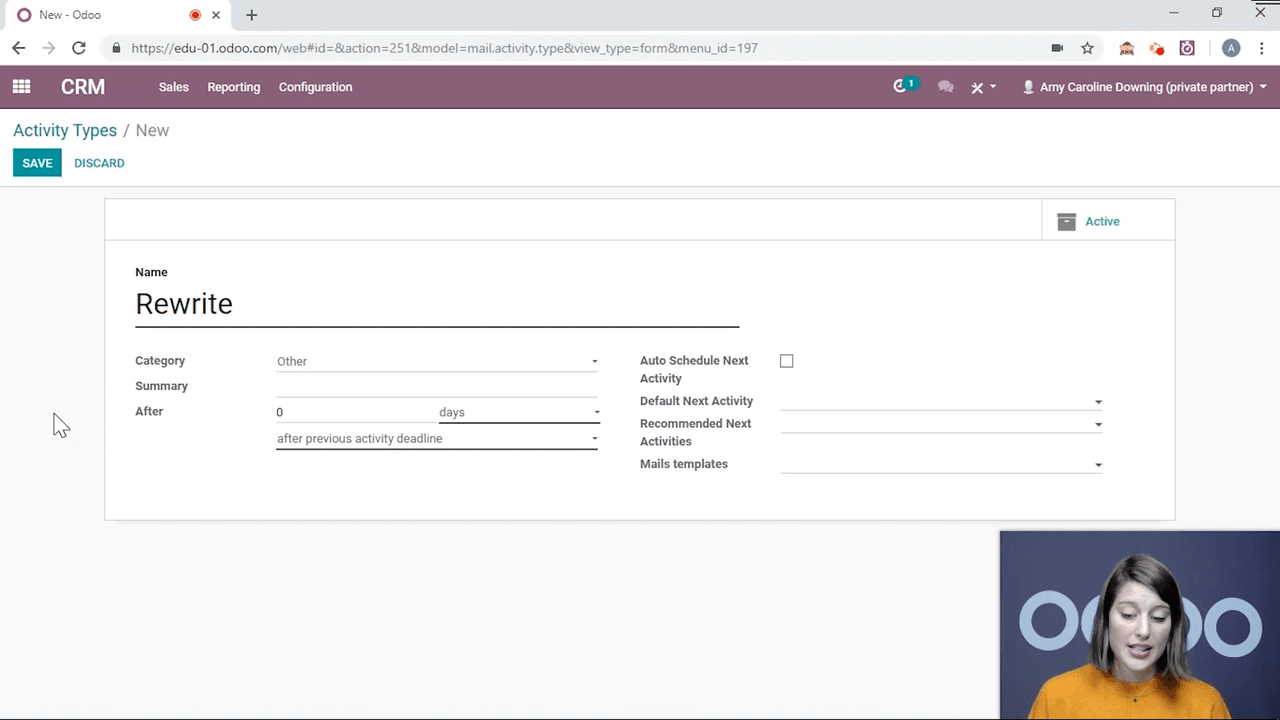
- Click Save.
Custom activity types apply across every module, so a type you create in CRM also shows up in Project, Sales, and the rest.
One System Across Every Module
Activities are not a CRM-only feature. You can schedule them on:
- Project tasks — track a rewrite, a review, or a client follow-up.
- Sales orders — remind yourself to confirm or chase.
- Invoices — schedule a payment follow-up.
- Any record with a chatter — the system is universal.
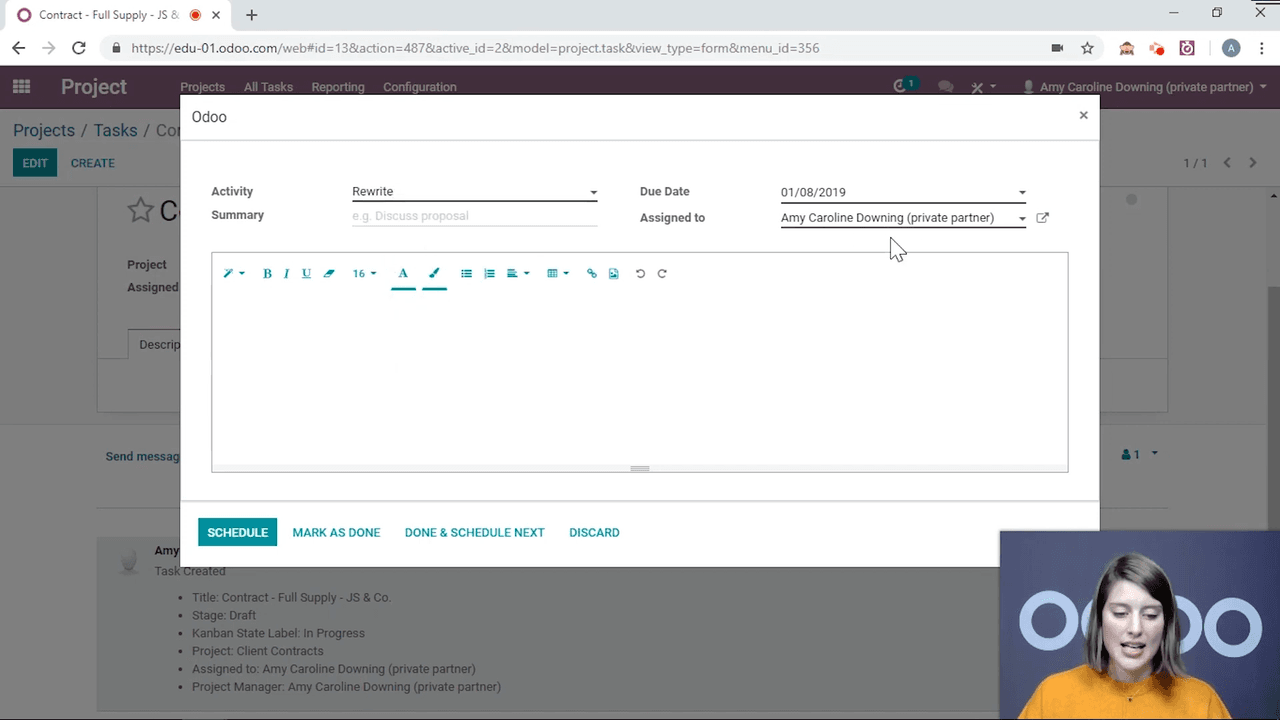
That consistency is the real win for a small team: one task-tracking system, no matter which Odoo app a person happens to be working in.
Habits That Make Activities Work
- Set deadlines you can actually hit — once everything is permanently overdue, the dates stop meaning anything.
- Use "Done & Schedule Next" — build activity chains for any multi-step process.
- Delegate to the right person — hand tasks out rather than trying to track everything yourself.
- Create custom types for recurring workflows — stop re-typing the same scheduling over and over.
- Check the clock icon every day — make reviewing due activities part of the routine.
Summary
Odoo activities swap out sticky notes and scattered to-do lists for a structured, trackable system built into every record. You schedule them in seconds, delegate them to teammates, chain them together, and create custom types that match how you actually work. The clock icon keeps it all in view, so nothing falls through the cracks.
If you want help shaping activities and custom types around your team's real workflows, talk to APAA and we will help you set them up.