Designing Images and Motion in Odoo Website: A Practical Guide for HK SMEs
How to use Odoo Website building blocks, images, animations, and background shapes to build pages that look professional and hold a visitor's attention.

Making a Page Look Like You Hired a Designer
At APAA, the Hong Kong SMEs we work with usually don't have a designer on staff. They have a product, a Website subscription, and a homepage that needs to look credible to a customer who has never heard of them. The good news is that Odoo Website's editor was built for exactly this situation: most of what makes a page feel polished — well-placed images, subtle motion, clean layout — is a matter of knowing which controls to reach for.
This guide covers the visual side of page building in Odoo: how the building blocks are organised, how to work with images, how to add motion without overdoing it, and how to save your best work so you don't have to rebuild it every time.
Understanding the Building Blocks
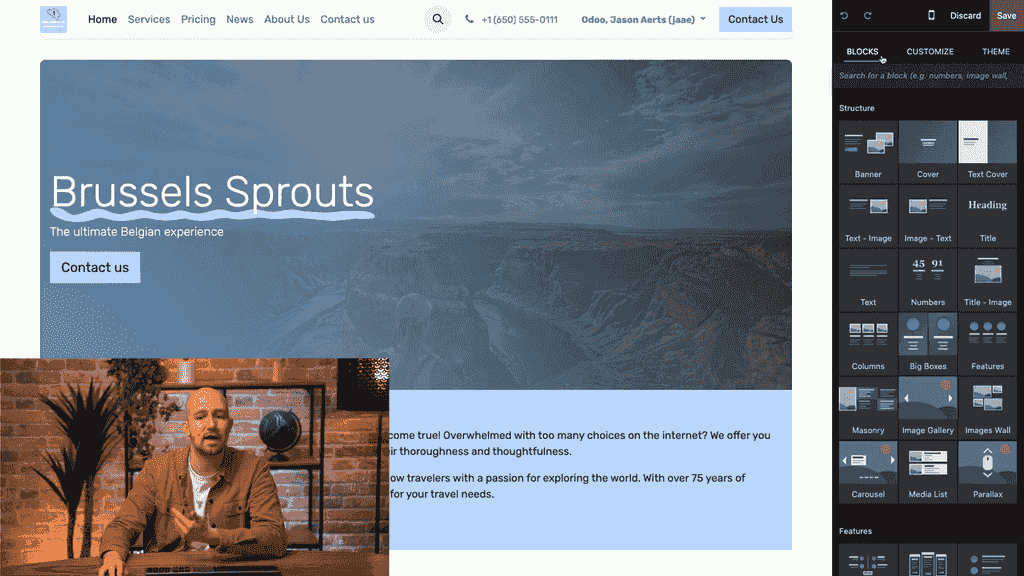
Odoo Website organises its building blocks into four categories, each with a distinct job:
- Structure — classic blocks for headings, images, and text. These are your foundational layout elements.
- Features — more advanced blocks that present specific information in smarter ways, such as price comparison tables.
- Dynamic — blocks that integrate with other Odoo apps. You can pull in e-commerce products or a newsletter sign-up form directly, for instance.
- Inner Content — elements designed to sit inside other blocks, such as buttons or dividers.
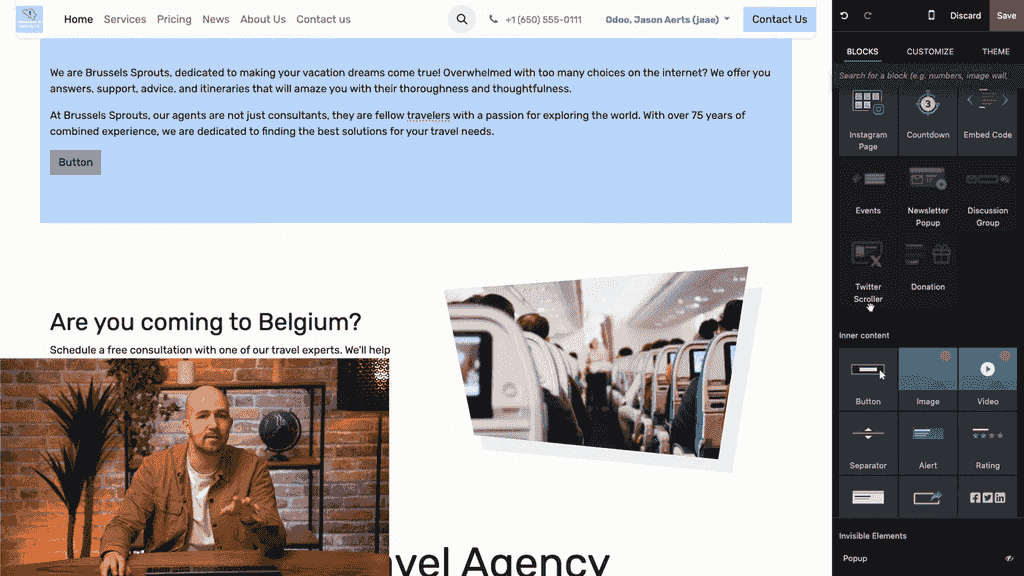
The fastest way to learn them is to drag and drop any block onto your page and see what it does. If you don't like the result, click the undo arrow, or use the Discard button to revert everything you've changed since you last opened the editor.
One word of caution: Discard removes all unsaved changes at once, not just your last action — so reach for the undo arrow first if you only want to step back one move.
Working with Images
Images carry your message faster than text, and Odoo gives you several ways to manage them well.
Adding and Replacing Images
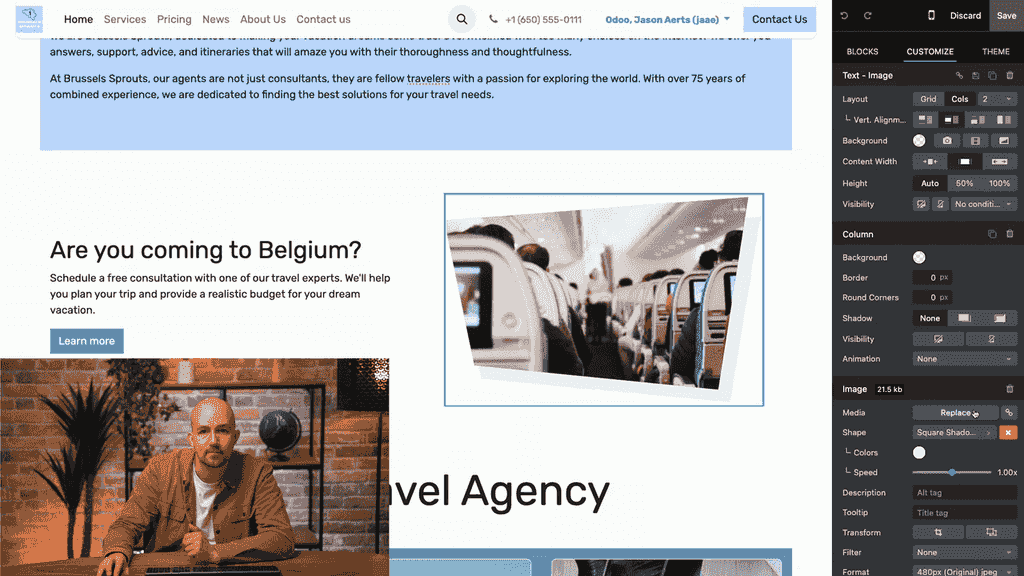
Click any image element and select Replace to swap it out. You can upload your own images, or use Odoo's built-in Unsplash integration, which opens up millions of free photos and illustrations — just type a keyword to search.
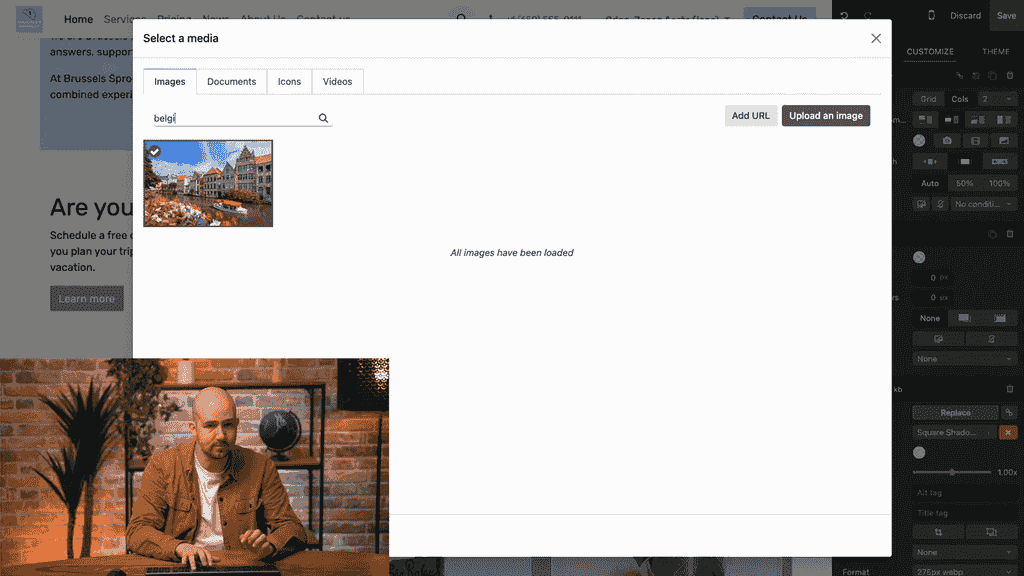
Image Optimisation
Odoo automatically optimises image quality for faster page loading, which in turn helps your search-engine ranking. If you want manual control, you can adjust the image weight directly in the editor.
Styling Options
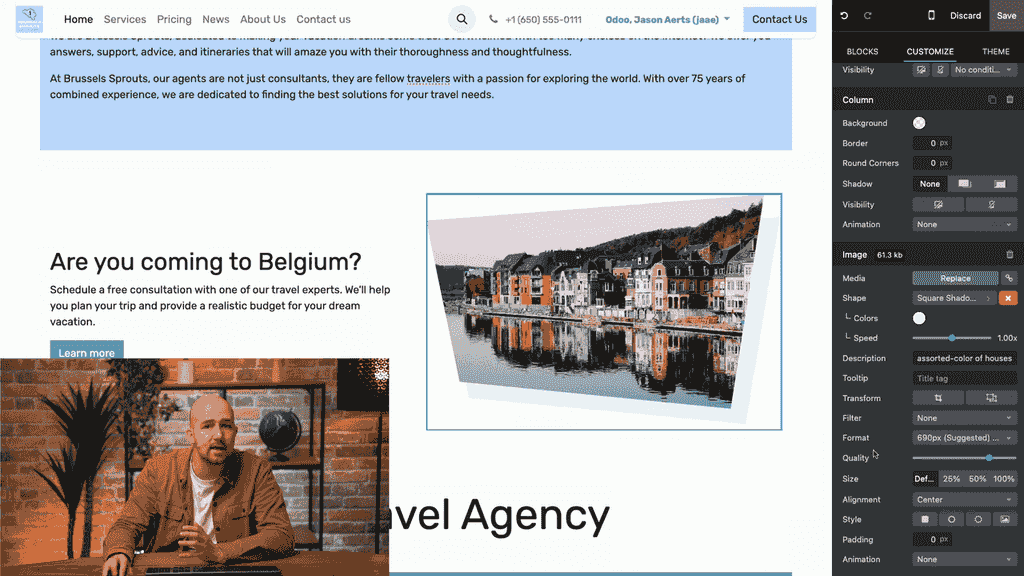
Once an image is selected, you can customise:
| Option | What It Does |
|---|---|
| Padding | Adjusts the spacing around the image |
| Style | Applies a preset visual style |
| Corner Roundness | Controls how rounded the corners are |
| Shape | Places the image inside a decorative shape |
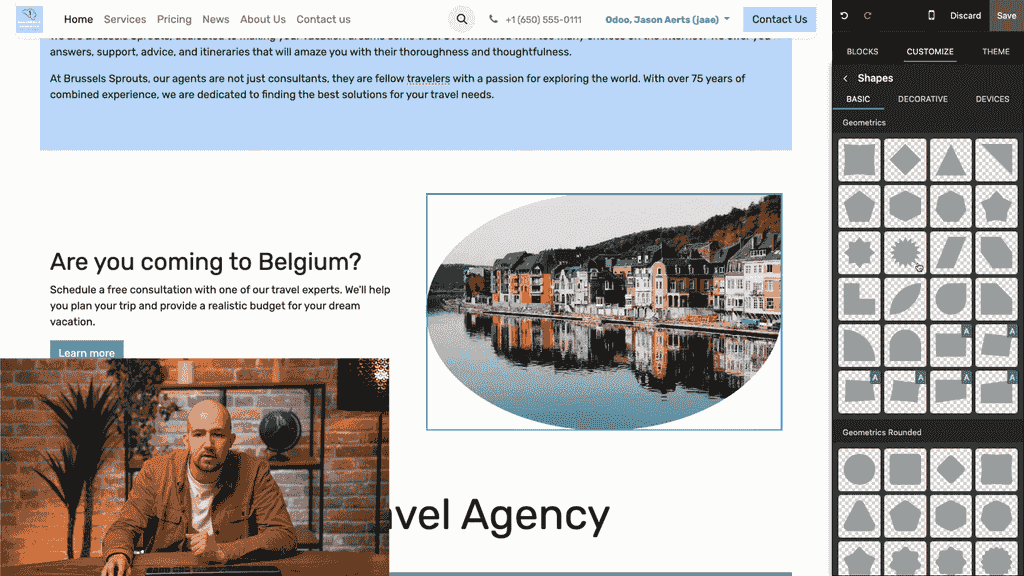
Adding Motion and Animation
Static pages can feel lifeless. A touch of motion draws the eye and lifts engagement — the trick is using it deliberately rather than everywhere. Odoo offers two main types.
Video Backgrounds
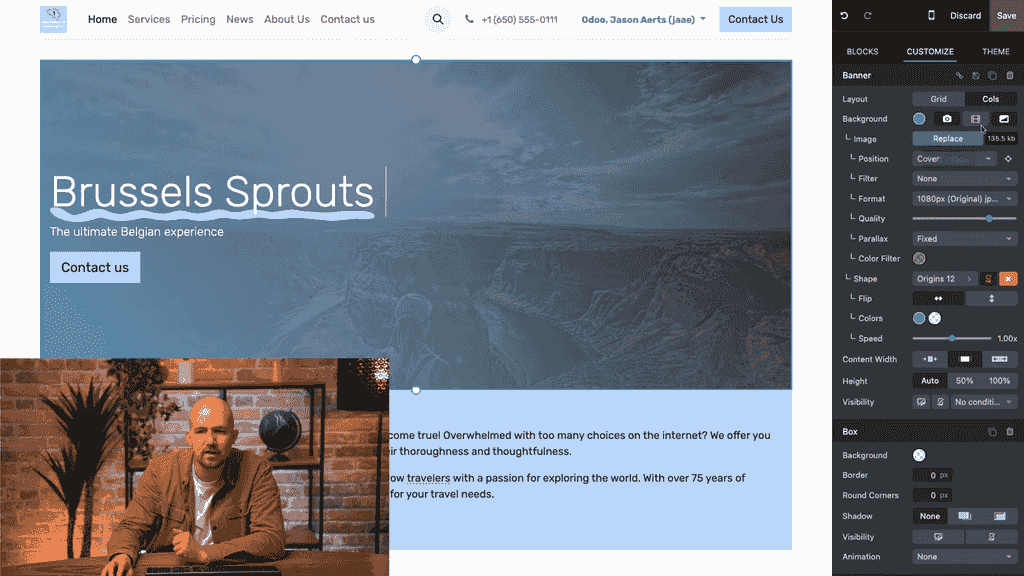
You can replace any banner image with a video background:
- Select the banner block.
- Click the Video option.
- Paste a link from YouTube, Dailymotion, or Vimeo.
- Click OK.
The video plays automatically when a visitor lands on the page.
Element Animations
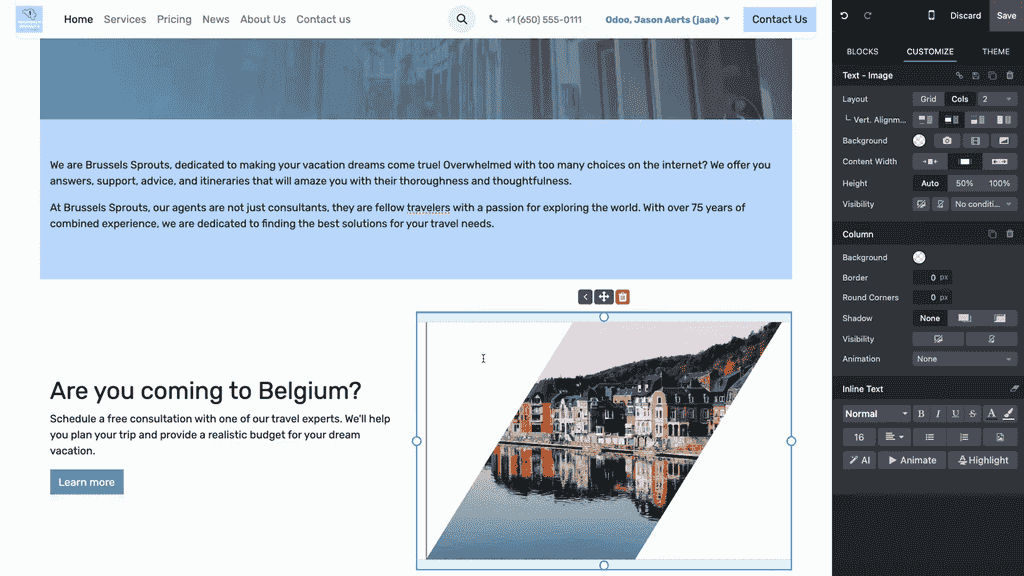
You can animate individual elements inside any block. There are two trigger types:
- On Scroll — the animation replays each time the user scrolls past the element.
- On Appearance — the animation plays once, the first time the element comes into view.
For each animation, you can set:
- Direction — left, right, top, or bottom.
- Effect — fade, slide, or bounce.
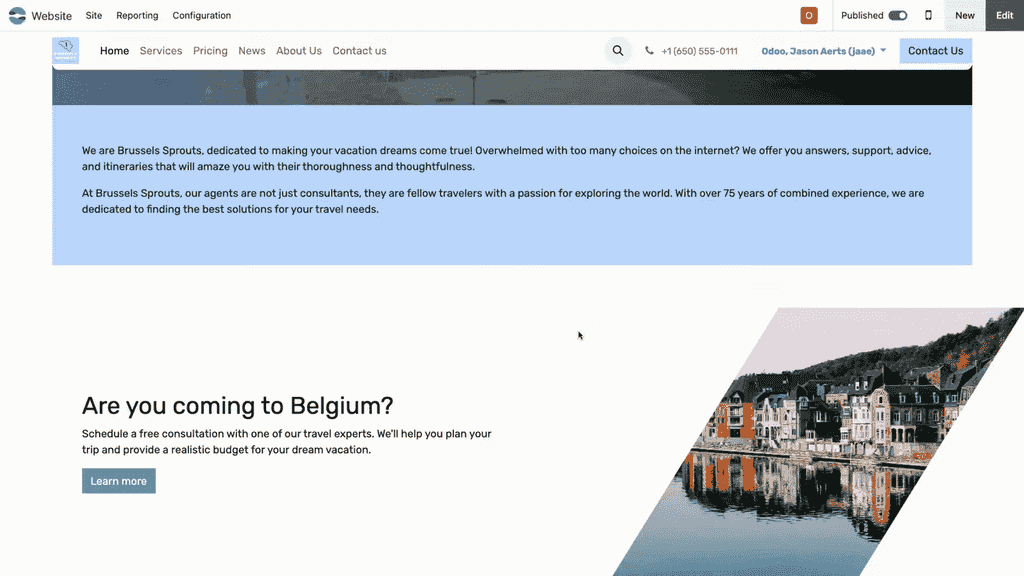
A good rule of thumb: reserve motion for the moments you want a visitor to notice — a key headline, a call-to-action button — and leave the rest of the page calm.
Using Background Shapes
Background shapes create visual flow between blocks, making a page feel more cohesive rather than a stack of separate sections.
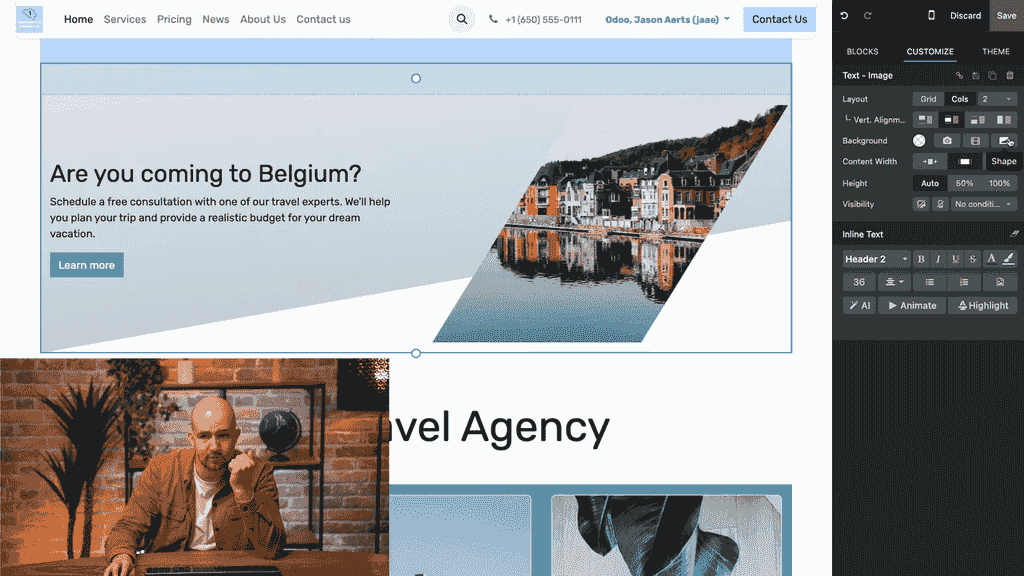
To add one:
- Select any block.
- Click the Shape option.
- Choose a shape from the available templates.
- Adjust the orientation and colour to suit your design.
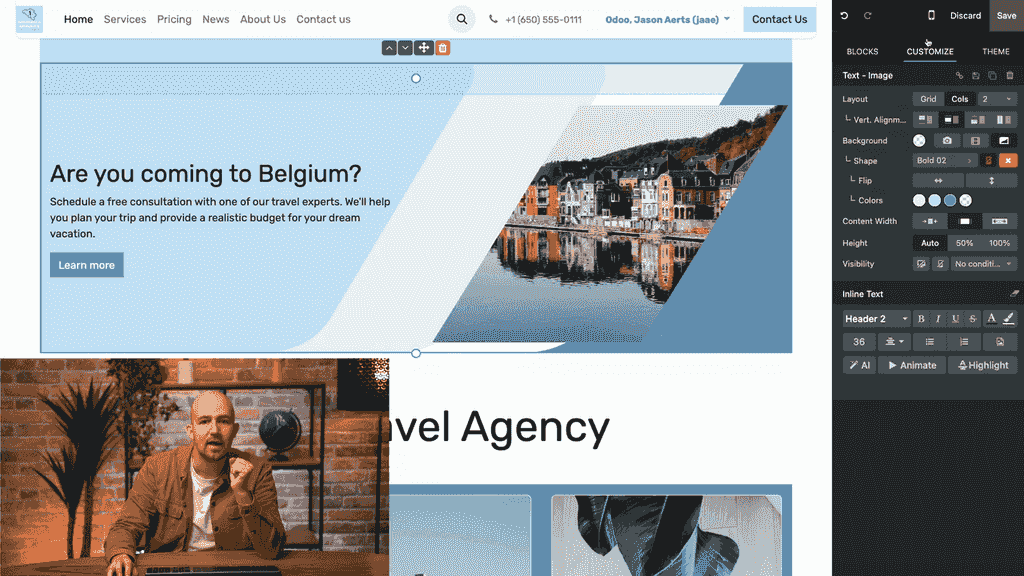
Keep the colours subtle. A shape is there to guide the eye, not compete with your content — too bold and it hurts readability.
Managing Block Layout
As a page fills out, you'll need to rearrange things. Odoo keeps this simple.
Reordering Blocks
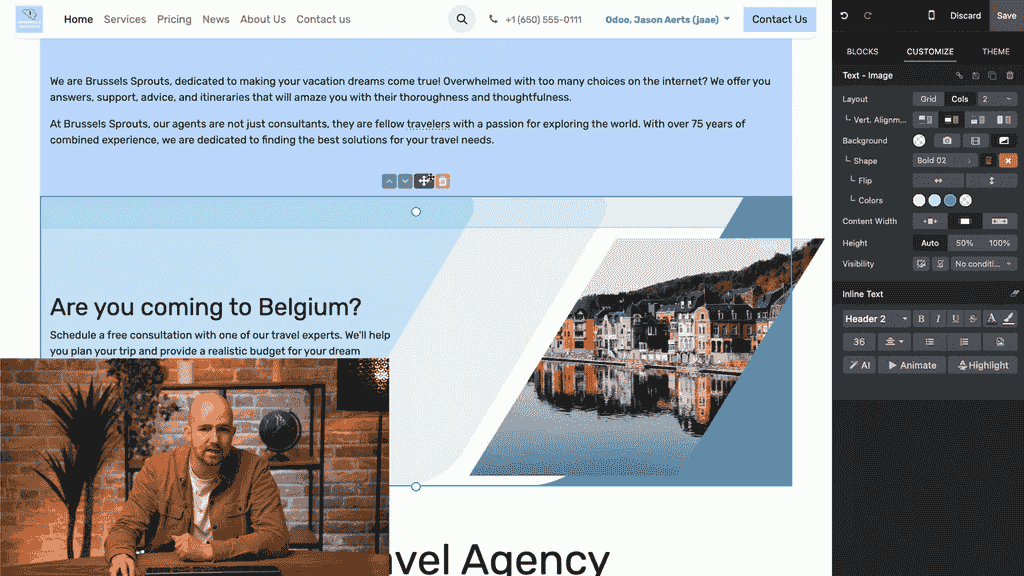
- Drag and drop — click and drag any block to a new position on the page.
- Arrow buttons — use the up/down arrows to move a block one position at a time.
Repositioning Elements Within Blocks
Individual elements inside a block — images or text — can also be shifted using the left/right arrow controls.
Duplicating Blocks
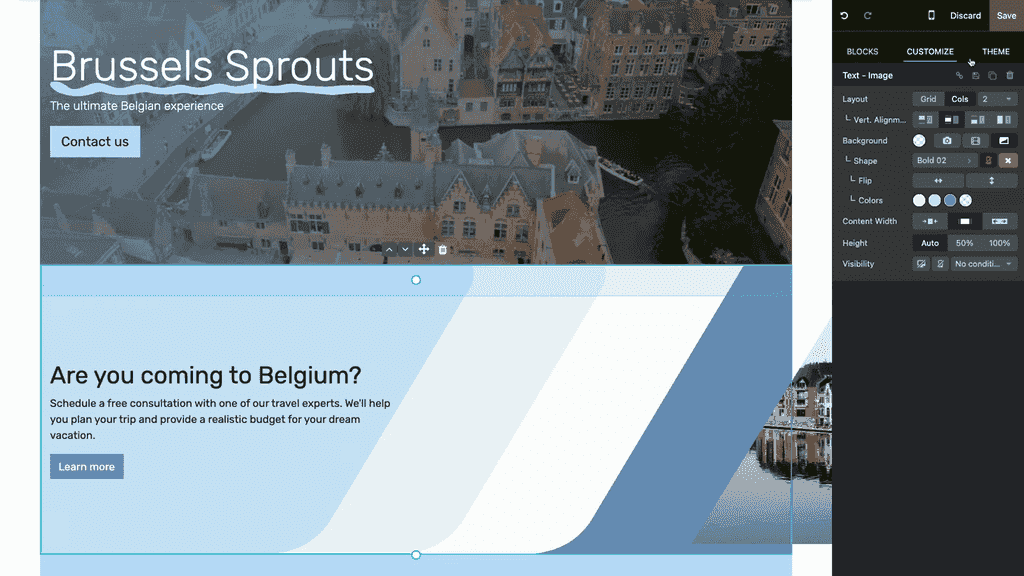
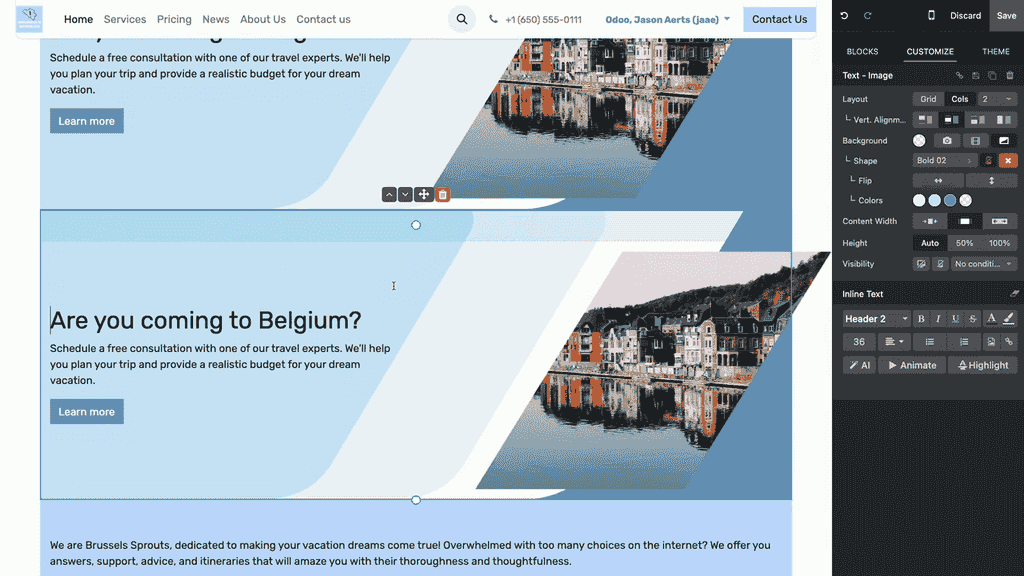
When you want to reuse a block's layout with different content, click Duplicate. The new block inherits all the styling and animations of the original, so you only change the words and images.
Saving Custom Templates
When you build a block design you expect to reuse across the site, save it as a custom template:
- Select the block.
- Click Save.
- Find it later under Custom Templates in the block panel.
- Rename it so it's easy to identify.
This is a real time-saver — instead of rebuilding and restyling a block from scratch each time, you drop in a ready-made version and edit the content.
Where to Go from Here
A few habits make the difference between a page that looks templated and one that looks designed:
- Try each block category so you know what's available before you start.
- Use Unsplash images to prototype a layout quickly, then swap in your own photography later.
- Add subtle animation only where you want to direct attention.
- Save your strongest blocks as custom templates to keep the whole site consistent.
If you'd like our team at APAA to design and build an Odoo Website that genuinely reflects your brand — rather than a default theme — get in touch with us and we'll help you put together pages that look the part and load fast.