Navigation, Links, and Menus in Odoo Website: A Guide for HK SMEs
How to build internal, external, and anchor links, manage header and mega menus, and customise the footer in Odoo Website so visitors find what they need fast.
If Visitors Can't Find It, It Isn't There
At APAA, the Hong Kong SMEs we work with often pour effort into a beautiful homepage, then lose customers because nobody can find the page that actually closes the sale. A common benchmark in web design is the three-click rule: any piece of information on your site should be reachable within three mouse clicks. Whether or not you take that literally, the principle holds — every extra click between a visitor and what they came for is a chance for them to give up.
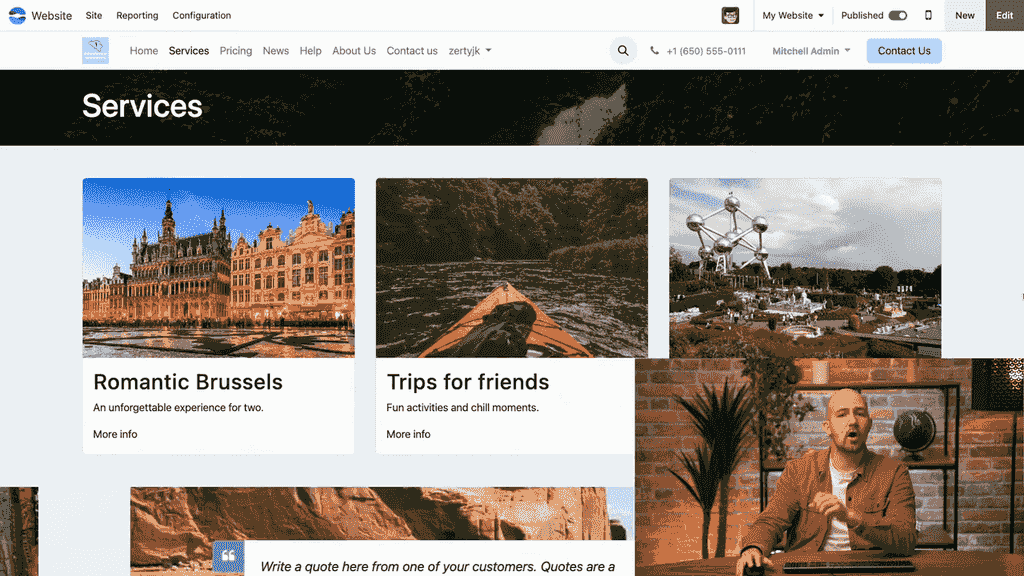
Odoo Website gives you all the tools to build clear menus, links, and buttons that move visitors through your content without friction. This guide walks through each of them — from the three link types, to header and mega menus, to the footer.
The Three Types of Links in Odoo Website
Odoo supports three primary link types, each serving a different purpose.
Internal Links
Internal links send visitors to other pages within your own website.
To create one:
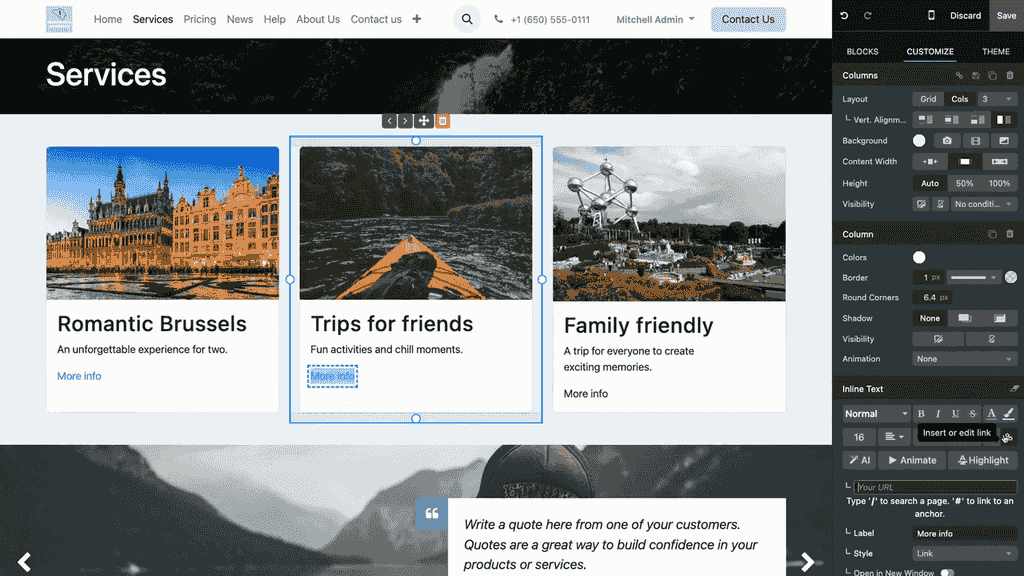
- Enter edit mode on your page.
- Select the text or image you want to link.
- Click the Insert or Edit Link button.
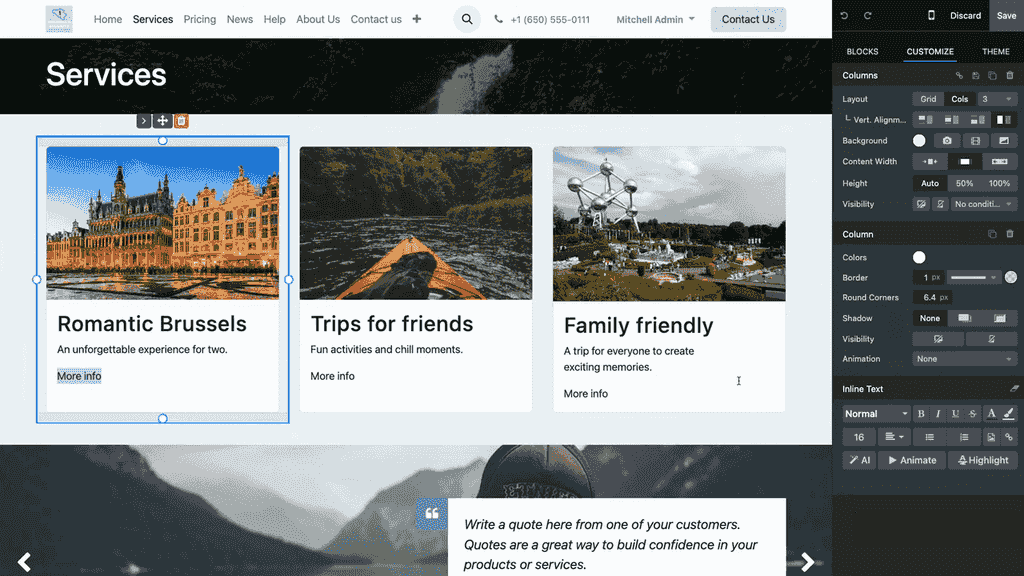
- Type a forward slash (
/) followed by a keyword or page title. - Odoo auto-suggests matching pages — select the one you want.
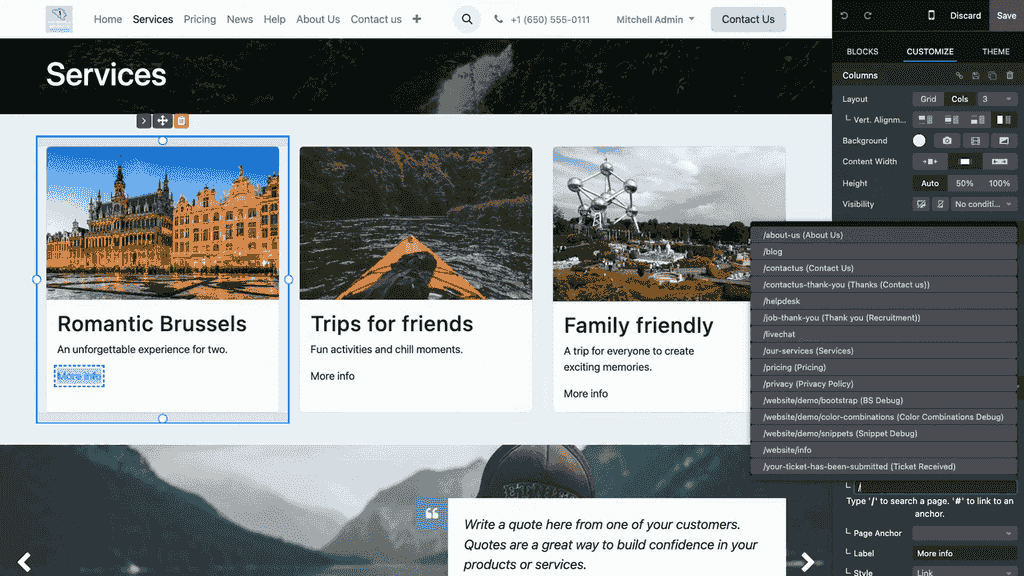
For example, typing /contact surfaces your Contact Us page.
External Links
External links send visitors to pages outside your website.
To create one:
- Select the text or image.
- Click the link button.
- Paste the full URL (e.g.,
https://example.com). - Enable Open in new tab so visitors don't lose your site when they follow it.
Anchor Links
Anchor links jump to a specific section on the same page — useful for long pages or a table-of-contents style of navigation.
To create one:
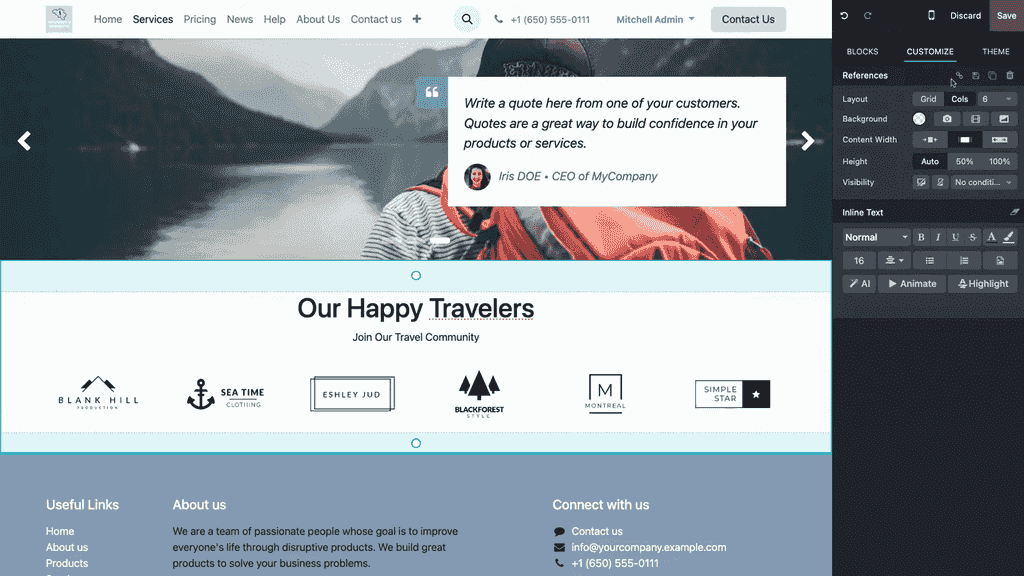
- Select the target element (the section you want to link to).
- Click Create a link to target this section — this creates the anchor.
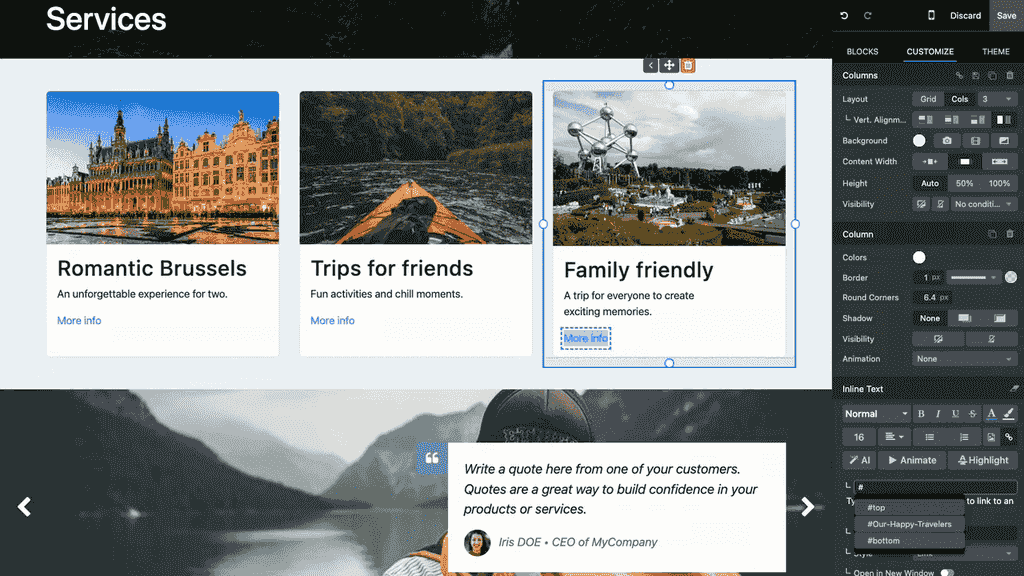
- Go back to the text where you want the clickable link.
- Click the link button and type
#followed by the anchor name. - Odoo shows the available anchors to choose from.
Customising How Links Look
Any link in Odoo can be styled as a button, with custom colours, sizes, and shapes.
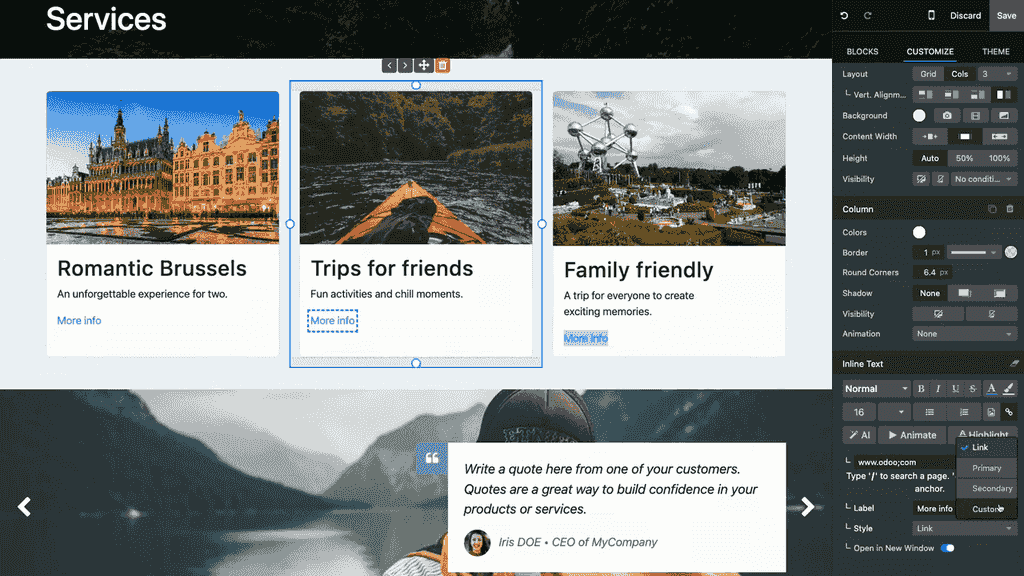
The options available:
| Setting | Choices |
|---|---|
| Style | Link, Primary button, Secondary button, Custom |
| Size | Small, Medium, Large |
| Shape | Default, Rounded, Outline, Fill |
| Color | Any colour from your theme's palette |
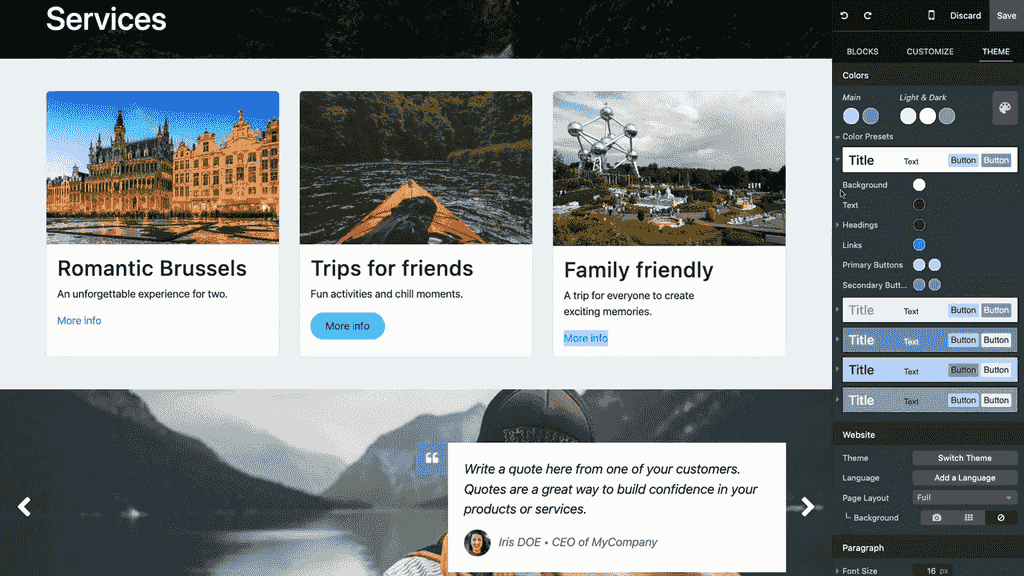
To keep buttons consistent across the whole site, set your default styles globally under the Theme tab in Color Presets, where you define the look of your primary and secondary buttons.
Managing the Header Menu
The header menu is your site's main navigation bar. Odoo gives you two ways to edit it.
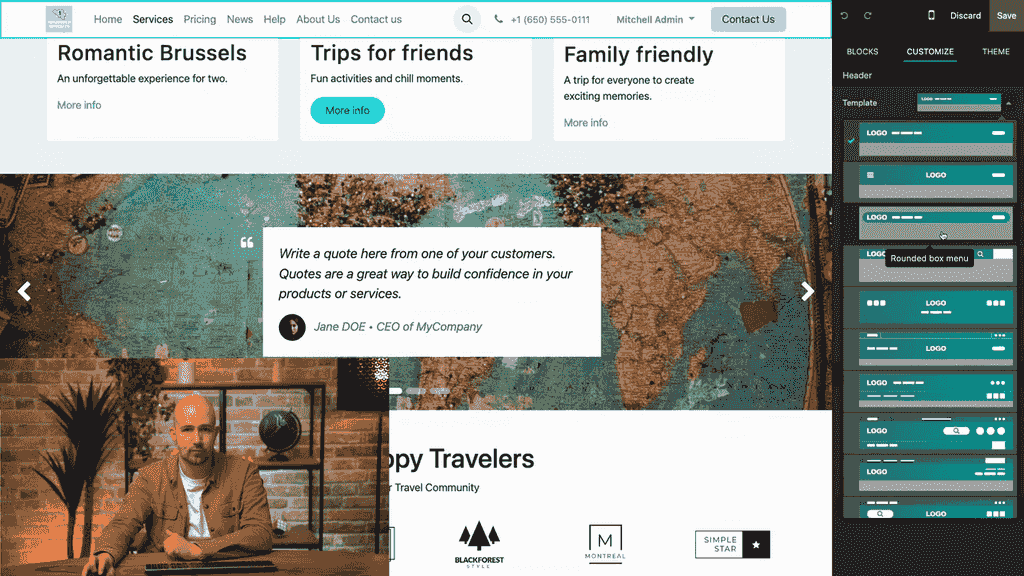
Quick Edit in the Header
- Click on the header menu while in edit mode.
- Choose from several built-in templates.
- Edit individual menu items directly — rename, reorder, or restyle them.
Menu Editor (Full Control)
For more advanced management:
- Go to Site > Menu Editor.
- Here you see every menu item in a list view.
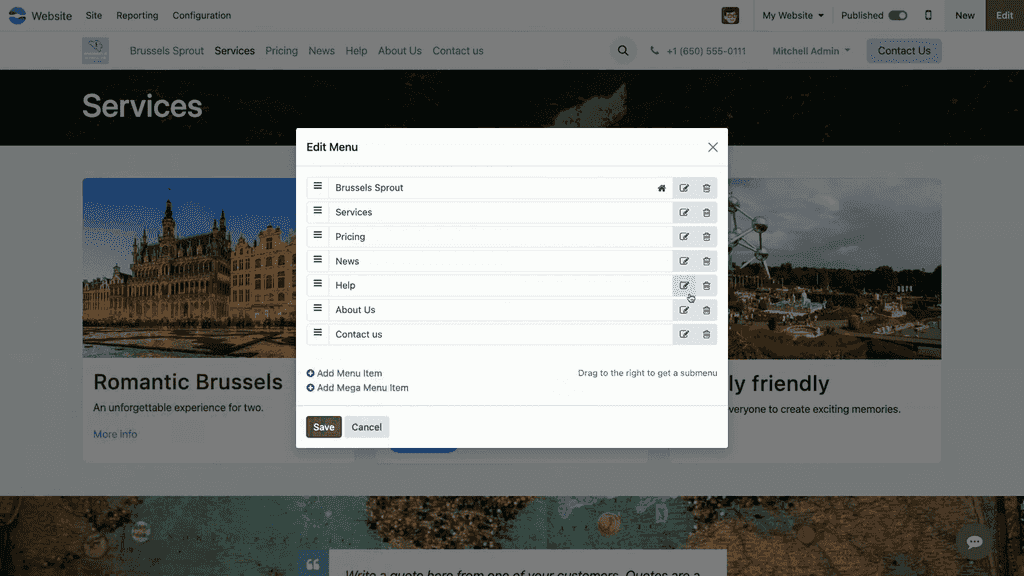
- Reorder items by dragging and dropping.
- Delete items with the trash icon.
- Add new items with the add button.
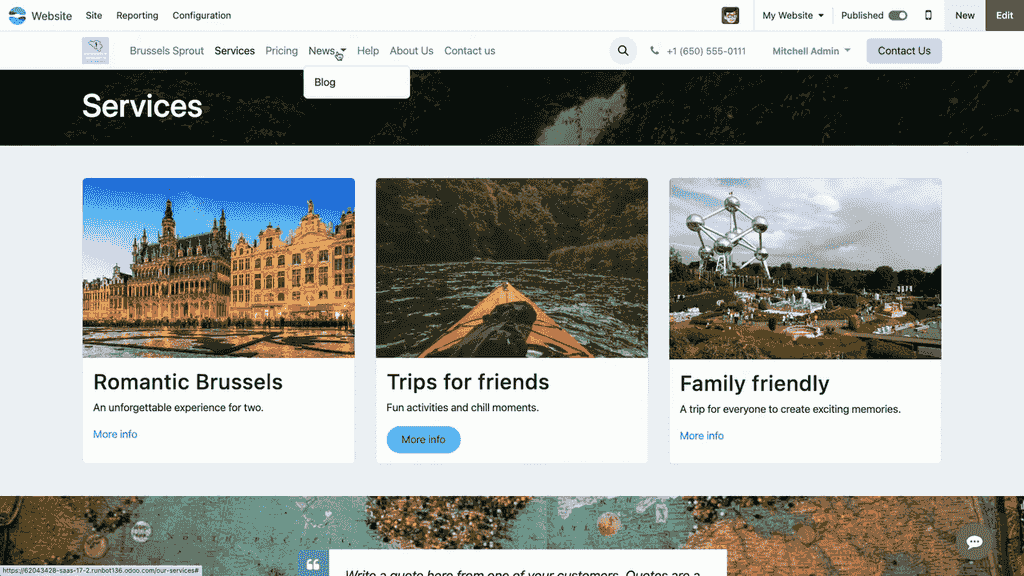
Creating Submenus
To build dropdown submenus in the Menu Editor:
- Add a new menu item.
- Drag it under the parent item.
- Shift it to the right — it becomes a submenu of the item above.
- The parent item automatically turns into a dropdown.
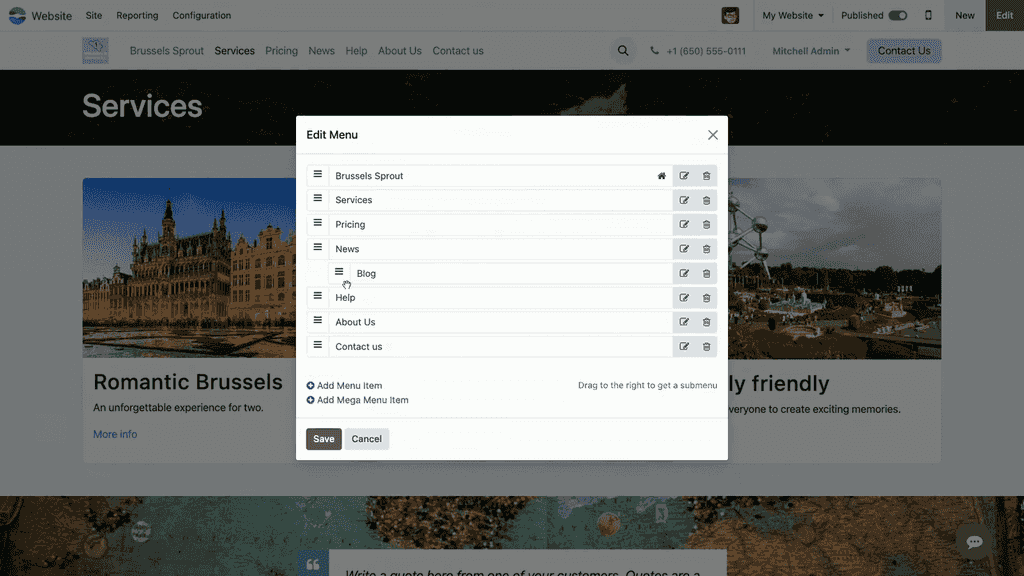
You can nest multiple items and build as many submenus as you need.
Mega Menus
For sites with a lot of content, a mega menu gives you a larger dropdown area organised into columns.
To add one:
- Open the Menu Editor.
- Click Add Mega Menu Item.
- Name it and position it in your menu structure.
- In edit mode, click on the mega menu to customise it.
- Choose from built-in templates with column layouts.
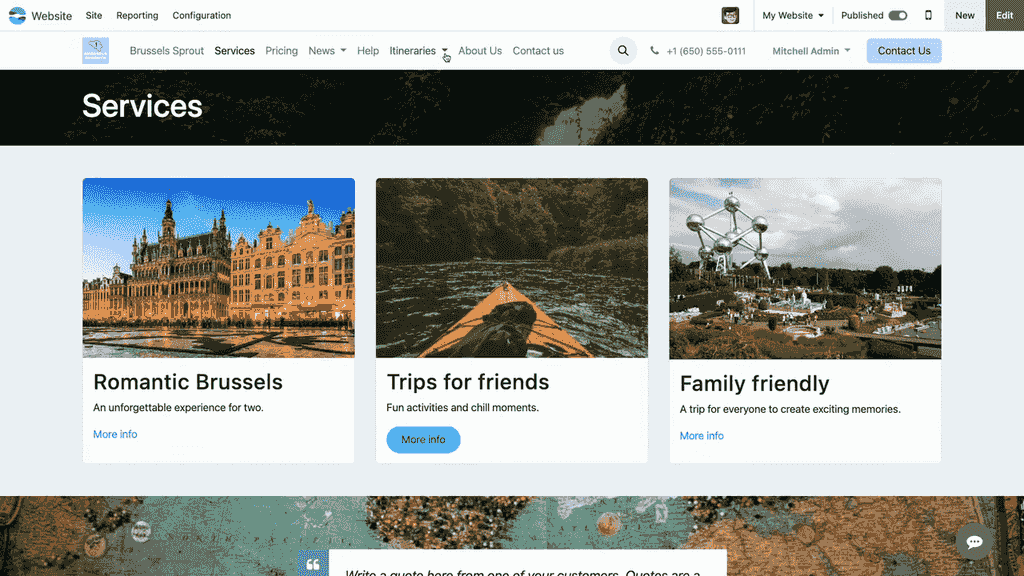
- Edit the content inside each column as needed.
Mega menus work well for showcasing categories, featured content, or a service overview — anywhere a plain dropdown would feel cramped.
Customising the Footer
The footer works much like the header, but it usually carries secondary information: contact details, social links, and legal pages.
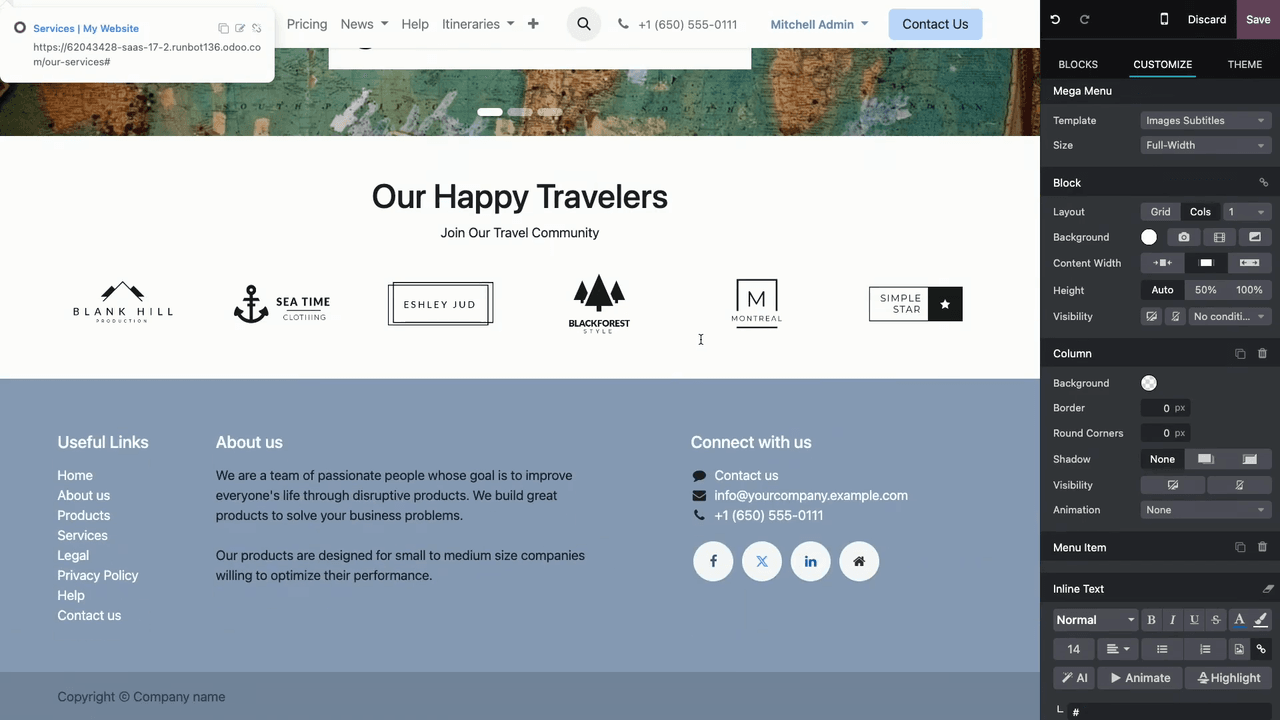
What you can customise:
- Templates — choose a layout from the built-in footer templates.
- Menu items — click any item to edit its text and link.
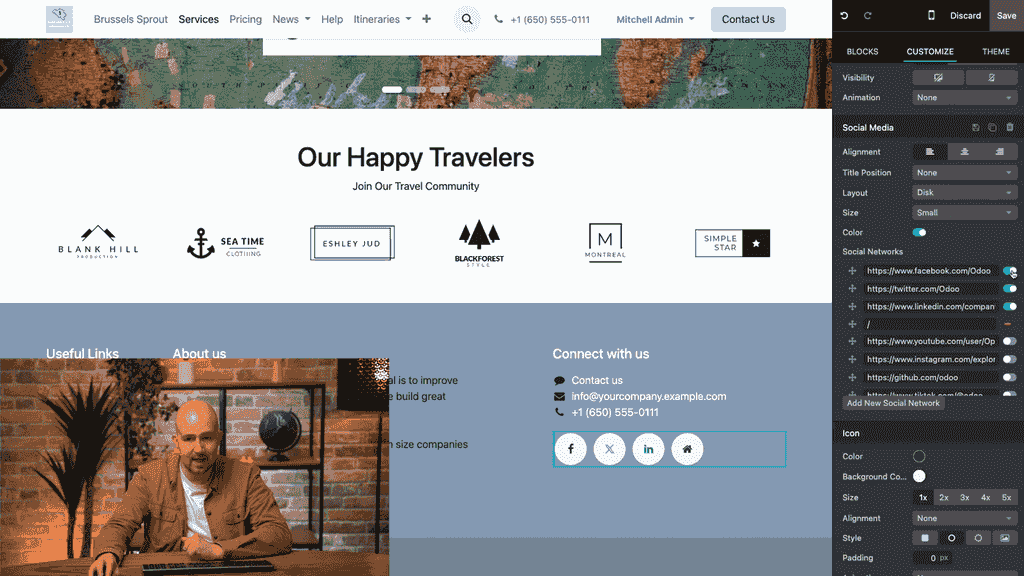
- Social media icons — add or remove platforms, set URLs, and adjust size and colour.
Navigation Best Practices
A few habits keep your navigation working for visitors rather than against them:
- Keep the main menu to 5–7 items. Too many options overwhelm visitors.
- Use descriptive labels. "Our Services" beats "More".
- Open external links in new tabs. Keep visitors on your own site.
- Use anchor links on long pages. Help readers jump straight to the relevant section.
- Test on mobile. Make sure menus behave well on smaller screens.
- Review regularly. Remove outdated links and pages before they become dead ends.
Getting It Right for Your Business
With these tools you can build a site that feels intuitive and keeps visitors moving toward the page that matters. A good starting point is to audit your current menu structure, then apply the link types and menu features that best serve your content.
If you'd like our team at APAA to design an Odoo Website navigation that guides your customers cleanly toward enquiry and purchase, get in touch with us and we'll map out a structure that fits how your business sells.